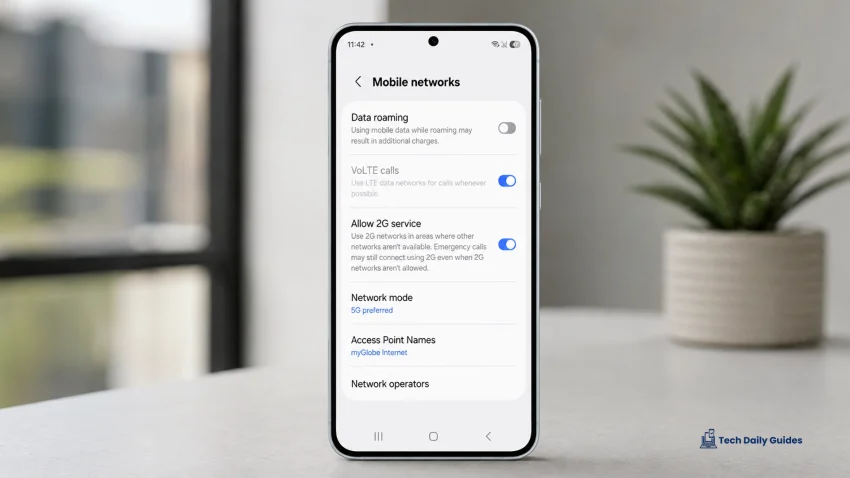
Seeing LTE or 4G instead of 5G on your Galaxy A57 can be confusing, especially when your SIM already supports 5G. The usual causes are simple: your plan may not have 5G access, your area may not have strong 5G coverage, or your phone may be using a network mode that does not prioritize 5G.
Try this first:
- Turn off Wi-Fi.
- Move near a window or go outside.
- Open Settings.
- Tap Connections.
- Tap Mobile networks.
- Tap Network mode.
- Select 5G/LTE/3G/2G auto connect.
- Toggle Airplane mode on for 20 seconds.
- Turn Airplane mode off.
- Wait for the phone to reconnect.
This usually fixes temporary network registration issues. For more Galaxy A57 tips, visit the Samsung Galaxy A57 hub.
Why 5G Is Not Showing Even With a 5G SIM on Galaxy A57
A 5G SIM does not automatically guarantee that the 5G icon will appear all the time. Your Galaxy A57 also needs:
- A 5G-supported mobile plan
- 5G coverage in your exact location
- Correct network mode settings
- Carrier-side 5G activation
- A compatible SIM profile
- Updated software
- Supported 5G bands for your carrier
- A stable signal from a nearby 5G tower
That is why your phone may still show LTE, 4G, or no 5G icon even when the SIM itself is 5G-ready.
1. Confirm That Your Mobile Plan Includes 5G
Start here because many users confuse a 5G SIM with a 5G plan. They are not always the same thing.
Your SIM may support 5G, but your current promo, prepaid package, or postpaid plan may still be limited to LTE or 4G.
Check these details with your carrier:
- Does your active plan include 5G data?
- Is 5G enabled on your account?
- Is your area covered by your carrier’s 5G service?
- Is your prepaid promo limited to LTE only?
- Is your account out of data or speed-restricted?
- Does your carrier require a new SIM replacement for 5G?
What to do
- Open your carrier app.
- Check your current plan details.
- Look for wording like 5G access, 5G-ready, or 5G data.
- Contact your carrier if the plan details are unclear.
- Ask them to refresh or reprovision your account for 5G.
This matters because Samsung also recommends checking with your carrier to confirm that you have the correct data plan and a 5G-compatible SIM.
2. Check Whether You Are in a Real 5G Coverage Area
The 5G icon will not appear if your Galaxy A57 cannot detect a usable 5G signal. A coverage map may say your city supports 5G, but that does not always mean your exact room, street, or building has a strong 5G signal.
5G may not show when you are:
- Inside a thick-walled building
- In a basement
- In an elevator
- Far from a 5G tower
- In a rural area
- In a congested area
- Near the edge of a 5G coverage zone
- Using the phone indoors where LTE is stronger
Quick coverage test
- Turn off Wi-Fi.
- Go outside or near a window.
- Wait 30 to 60 seconds.
- Check the status bar.
- Open a browser or speed test app.
- Move to a known 5G location, such as a mall, business district, airport, or city center.
- Check if the 5G icon appears there.
When 5G appears in one area but not another, your phone is probably working normally. The issue is coverage, not the Galaxy A57.
3. Make Sure 5G Is Enabled in Network Mode
Your phone may be set to LTE-only mode. This can happen after changing SIM cards, traveling, using carrier settings, or adjusting mobile network options.
How to enable 5G on Galaxy A57
- Open Settings.
- Tap Connections.
- Tap Mobile networks.
- Tap Network mode.
- Select 5G/LTE/3G/2G auto connect.
- Wait for the phone to reconnect.
- Turn off Wi-Fi and check the mobile network icon.
Samsung’s network mode instructions use the same path: Settings > Connections > Mobile networks > Network mode.
What if the 5G option is missing?
The 5G option may not appear because of:
- Carrier restrictions
- Region-specific firmware
- Unsupported carrier profile
- Account not provisioned for 5G
- SIM not fully activated
- Network settings controlled by the carrier
Contact your carrier and ask whether your specific Galaxy A57 model is supported on their 5G network.
4. Toggle Airplane Mode to Refresh the Network
Sometimes the phone is stuck on LTE because it has not refreshed its connection to the nearest tower. Airplane mode forces the Galaxy A57 to disconnect and reconnect cleanly.
How to do it
- Swipe down from the top of the screen.
- Tap Airplane mode.
- Wait 20 to 30 seconds.
- Tap Airplane mode again to turn it off.
- Wait for the signal bars to return.
- Check if 5G appears.
- Test mobile data with Wi-Fi turned off.
This is useful after moving between places, riding public transport, switching SIMs, or leaving a weak-signal area.
5. Restart Your Galaxy A57
A restart clears temporary modem, SIM, and software glitches. It also forces your phone to reconnect to your carrier from scratch.
How to restart
- Press and hold the Side button and Volume Down button.
- Tap Restart.
- Wait for the phone to turn back on.
- Turn off Wi-Fi.
- Wait 30 to 60 seconds.
- Check whether 5G appears.
Restarting is especially useful when 5G stopped showing after:
- A One UI update
- A SIM swap
- Traveling to another city
- Switching between Wi-Fi and mobile data
- Using hotspot
- Losing signal for a long time
A restart will not delete your files, apps, photos, or messages.
6. Check the Correct SIM for Mobile Data
Dual SIM setup can make this issue confusing. Your Galaxy A57 may have a 5G SIM inserted, but the phone might be using the other SIM for mobile data.
For example:
- SIM 1 has a 5G plan
- SIM 2 is selected for mobile data
- SIM 2 only supports LTE
- The phone shows LTE even though SIM 1 is 5G-ready
How to check
- Open Settings.
- Tap Connections.
- Tap SIM manager.
- Look for Mobile data.
- Select the SIM with your 5G plan.
- Go back to Mobile networks.
- Check that the same SIM uses 5G/LTE/3G/2G auto connect.
After changing the mobile data SIM, wait a minute. The network icon may not change instantly.
7. Remove and Reinsert the SIM Card
A 5G SIM can still cause problems if it is loose, dirty, damaged, or not seated properly in the tray.
How to reseat the SIM safely
- Turn off your Galaxy A57.
- Remove the SIM tray using the ejector tool.
- Take out the SIM card.
- Check for scratches, stains, or damage.
- Wipe the SIM gently with a dry microfiber cloth.
- Place it back into the tray correctly.
- Insert the tray fully.
- Turn the phone back on.
- Wait for the carrier signal to return.
- Check if 5G appears.
Testing the SIM in another 5G phone can also help. When the SIM does not show 5G on any phone, the problem is likely the SIM, plan, or carrier account.
When another 5G SIM works on your Galaxy A57, your phone is probably fine.
8. Update One UI and Carrier Settings
Software updates can include modem fixes, carrier profile updates, and network stability improvements. An outdated software version may cause connection issues, especially when carriers update their network settings.
How to update your Galaxy A57
- Connect to Wi-Fi.
- Open Settings.
- Scroll down and tap Software update.
- Tap Download and install.
- Install any available update.
- Restart the phone after updating.
Samsung recommends keeping Galaxy devices updated for the best experience, especially when dealing with network-related issues.
Also check your carrier app. Some carriers push account or SIM changes through their own app instead of the phone’s main software update menu.
9. Reset APN Settings to Default
APN settings control how your phone connects to your carrier’s mobile internet gateway. Wrong APN settings may cause mobile data issues or unstable network behavior.
This is worth checking if:
- Mobile data is slow
- The 5G icon appears but internet does not work
- You recently changed SIMs
- You manually edited APN settings before
- You moved from another carrier
- Your carrier gave you new APN details
How to reset APN settings
- Open Settings.
- Tap Connections.
- Tap Mobile networks.
- Tap Access Point Names.
- Tap the three-dot menu.
- Tap Reset to default.
- Confirm the reset.
- Restart your phone.
- Turn off Wi-Fi and test mobile data again.
Samsung’s APN guide lists Connections > Mobile networks > Access Point Names > Reset to default as the reset path on supported Galaxy devices.
Do not manually enter APN details unless your carrier gives you the exact settings.
10. Reset Mobile Network Settings
Resetting mobile network settings is the best final step before contacting your carrier or considering a deeper reset.
This can fix incorrect network profiles, old carrier settings, and broken mobile data configurations.
How to reset network settings
- Open Settings.
- Tap General management.
- Tap Reset.
- Tap Reset mobile network settings if available.
- If you do not see that option, tap Reset network settings.
- Choose the affected SIM if asked.
- Tap Reset settings.
- Enter your PIN, password, or pattern.
- Restart the phone.
- Test 5G in a known 5G area.
Samsung notes that resetting network settings can reset Wi-Fi, Bluetooth, and other network settings, so you may need to reconnect to saved Wi-Fi networks afterward.
When 5G Still Does Not Show on Galaxy A57
The problem may be on the carrier side when all phone settings look correct.
Contact your carrier and ask these exact questions:
- Is my account provisioned for 5G?
- Does my current plan include 5G access?
- Is my SIM fully activated for 5G?
- Does your 5G network support the Galaxy A57?
- Are there outages or maintenance in my area?
- Do I need a SIM replacement?
- Is 5G supported while roaming?
- Are there band compatibility limits for my phone model?
This is better than simply saying “my 5G is not working” because it forces the carrier to check the right parts of your account.
Final Advice
When 5G Not Showing on Galaxy A57 becomes a constant problem, do not blame the SIM immediately. A 5G SIM is only one part of the setup. Your phone also needs a 5G plan, strong 5G coverage, correct network mode, carrier activation, updated software, and compatible carrier bands.
Start with the basics: confirm your plan, check coverage, enable 5G/LTE/3G/2G auto connect, toggle Airplane mode, and restart the phone. Then check the active data SIM, reseat the SIM card, update One UI, reset APN settings, and reset mobile network settings.
When 5G appears in some places but not others, your Galaxy A57 is likely fine. When 5G never appears anywhere, even with a confirmed 5G plan and strong coverage, ask your carrier to reprovision your account or replace the SIM.
For more troubleshooting guides, visit the Samsung Galaxy A57 hub.
FAQs
Why is my Galaxy A57 showing LTE instead of 5G?
Your Galaxy A57 may show LTE instead of 5G because your area has weak 5G coverage, your mobile plan does not include 5G, the phone is set to LTE-only mode, or your carrier has not activated 5G on your account.
Does a 5G SIM automatically enable 5G on Galaxy A57?
No. A 5G SIM only means the SIM can support 5G. You still need a 5G plan, 5G coverage, correct network mode, carrier provisioning, and a compatible phone model for your carrier’s 5G bands.
Should I factory reset my Galaxy A57 if 5G is not showing?
A factory reset should not be your first move. Try checking your plan, coverage, network mode, SIM settings, software updates, APN settings, and network reset first. Factory reset should only be considered after your carrier confirms that your SIM, plan, and account are already working correctly.
Sources
- Samsung Support: How to use 5G on your Galaxy phone
https://www.samsung.com/uk/support/mobile-devices/how-to-use-5g-on-your-galaxy-phone/ - Samsung Support: Issues with mobile network connection on Samsung phone or tablet
https://www.samsung.com/us/support/troubleshooting/TSG01212956/ - Samsung Support: How to troubleshoot mobile data issues
https://www.samsung.com/ph/support/mobile-devices/how-to-troubleshoot-mobile-data-issues/ - Samsung Support: How to set up Access Point Name, APN, on Samsung mobile device
https://www.samsung.com/sg/support/mobile-devices/how-to-set-up-access-point-name-apn-on-samsung-mobile-device/ - Samsung Support: Changing the Network Mode on my Galaxy Phone
https://www.samsung.com/au/support/mobile-devices/network-mode/