
Key Takeaways
- The Samsung Galaxy A57 user guide helps new owners understand setup, navigation, security, battery features, camera tools, storage, and troubleshooting basics.
- You can download the Samsung Galaxy A57 5G user guide/manual PDF here: Samsung Galaxy A57 5G User Guide Manual PDF.
- Beginners should start by setting up Wi-Fi, Samsung and Google accounts, screen lock, fingerprint unlock, backups, updates, and emergency features.
- Some features may vary depending on your country, carrier, model variant, storage option, and software version.
- This guide gives you a simple starting point before you explore more detailed Galaxy A57 setup, settings, and troubleshooting tutorials.
The Samsung Galaxy A57 is designed to be a capable everyday phone for calls, messaging, browsing, photos, video, gaming, work, and entertainment.
But if you are setting it up for the first time, switching from another Android phone, or moving from an iPhone, the number of settings and features can feel overwhelming.
That is why having a simple Galaxy A57 user guide is useful.
This page explains where to download the Samsung Galaxy A57 manual PDF, how to start setting up your phone, and which beginner tips you should learn first.
Samsung Galaxy A57 User Guide Overview
The Samsung Galaxy A57 user guide is designed to help you understand how to use your phone properly.
It covers the basics of using the device, including setup, navigation, accounts, security, display options, camera features, connectivity, apps, battery settings, storage, accessibility, and troubleshooting.
For beginners, the most useful parts of the manual are usually the setup, navigation, lock screen, notifications, camera, battery, storage, backup, and security sections.
If you are helping a parent, grandparent, student, or first-time Samsung user, the manual can also make the phone easier to explain because it organizes the most important features in one place.
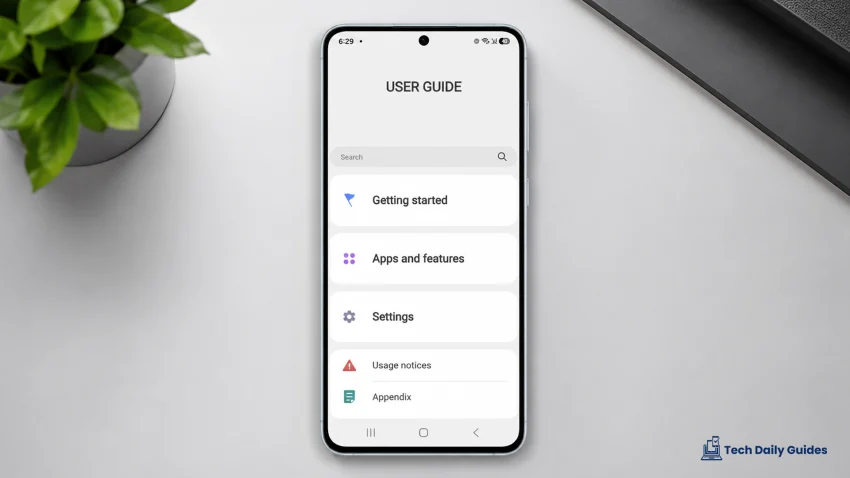
Download Samsung Galaxy A57 User Guide Manual PDF
You can download the Samsung Galaxy A57 5G user guide/manual PDF using the link below:
Download: Samsung Galaxy A57 5G User Guide Manual PDF
After downloading the PDF, you can open it on your phone, tablet, or computer.
You can also save it to your device so you can check the instructions anytime, even when you are not connected to the internet.
For easier reading, open the PDF on a second device while setting up your Galaxy A57.
This way, you can follow the instructions on one screen while using the phone on the other.
How to Use the Galaxy A57 Manual PDF
Once you have downloaded the Galaxy A57 manual PDF, you can use it as a quick reference guide.
Here are some useful ways to use it:
- Open the PDF using a PDF reader or browser.
- Use the search feature to find a setting, feature, or problem.
- Bookmark important sections you may need again.
- Save the file to your phone, computer, or cloud storage.
- Print selected pages if you prefer a physical copy.
- Share the file with family members who also use the phone.
For example, you can search for terms like Wi-Fi, fingerprint, camera, battery, screen lock, backup, accessibility, or reset.
This is much faster than scrolling through the entire manual.
How to Check Your Galaxy A57 Model Number
Before using any guide, it is helpful to confirm your exact Galaxy A57 model number.
Some features may vary depending on region, carrier, or software version.
Here is how to check your model number:
- Open Settings.
- Scroll down and tap About phone.
- Look for Model name and Model number.
- Write down the model number or take a screenshot.
- Use that information when checking support pages or troubleshooting guides.
This is useful because features like eSIM, NFC, Samsung Wallet, 5G bands, storage options, and carrier settings may not be identical in every market.
How to Use the Built-In User Manual
Some Samsung phones also include a built-in user manual or tips section inside the Settings app.
To check it:
- Open Settings.
- Scroll down and tap Tips and user manual, User manual, or a similar option.
- Browse the available topics.
- Use the search box to find a feature or setting.
- Tap a result to read the instructions.
This can be useful when you do not want to open the PDF manually.
However, keeping a downloaded copy of the Galaxy A57 manual PDF is still helpful because you can access it from another device or print important pages when needed.
First Things to Do After Turning On Your Galaxy A57
When you turn on the Galaxy A57 for the first time, do not rush through setup.
A careful setup can prevent battery drain, notification issues, backup problems, account errors, and storage clutter later.
Start with these important steps:
- Connect to a stable Wi-Fi network.
- Sign in with your Google Account.
- Sign in with your Samsung Account.
- Set up a secure screen lock.
- Add your fingerprint or face unlock.
- Transfer data using Smart Switch, if needed.
- Check for a software update.
- Update your apps from the Galaxy Store and Google Play Store.
- Turn on backup for photos, contacts, and important files.
- Review privacy, notification, and app permission settings.
These steps help make the phone safer, smoother, and easier to use.
How to Set Up Wi-Fi
A stable Wi-Fi connection is important during setup because the phone may need to download updates, restore apps, sync files, and connect to your accounts.
To connect to Wi-Fi:
- Open Settings.
- Tap Connections.
- Tap Wi-Fi.
- Turn on the Wi-Fi switch.
- Select your Wi-Fi network.
- Enter the password.
- Tap Connect.
If the phone connects to Wi-Fi but has no internet, restart your router and reconnect the phone to the network.
How to Set Up Your Samsung Account
A Samsung Account gives you access to Samsung services like Galaxy Store, Find My Mobile, Samsung Cloud, Samsung Wallet, Secure Folder, and device backup features.
To set it up:
- Open Settings.
- Tap Samsung account at the top.
- Sign in with your existing account or create a new one.
- Verify your email or phone number if asked.
- Review the account settings.
- Turn on the services you want to use.
This account is especially important if you want to locate, lock, or protect your phone if it gets lost.
How to Set Up Your Google Account
Your Google Account is needed for Gmail, Google Play Store, Google Photos, YouTube, Google Drive, contacts, calendar, and app downloads.
To add or check your Google Account:
- Open Settings.
- Tap Accounts and backup.
- Tap Manage accounts.
- Tap Add account.
- Select Google.
- Sign in with your email and password.
- Follow the on-screen instructions.
After signing in, open the Play Store and update your apps.
How to Transfer Data From Your Old Phone
Samsung Smart Switch can help you transfer contacts, photos, messages, apps, call logs, settings, and files from your old phone.
To use Smart Switch:
- Open Settings.
- Tap Accounts and backup.
- Tap Bring data from old device.
- Choose Galaxy/Android or iPhone/iPad.
- Select wireless or cable transfer.
- Follow the on-screen instructions.
- Choose the data you want to transfer.
- Wait for the process to finish.
If your old phone has many unused apps, old downloads, or large videos, transfer only the important files.
A cleaner setup can help your new Galaxy A57 run better from the start.
How to Set Up Fingerprint Unlock
Fingerprint unlock makes the phone faster and safer to access.
To set it up:
- Open Settings.
- Tap Security and privacy.
- Tap Biometrics.
- Tap Fingerprints.
- Enter your PIN, password, or pattern.
- Follow the instructions to scan your finger.
- Add the same finger from different angles for better accuracy.
- Tap Done.
If you use a screen protector, install it first before registering your fingerprint.
This helps the sensor read your finger more accurately.
How to Set Up Face Unlock
Face unlock is convenient, but it is usually less secure than fingerprint unlock, PIN, or password.
To enable it:
- Open Settings.
- Tap Security and privacy.
- Tap Biometrics.
- Tap Face recognition.
- Enter your current screen lock.
- Follow the on-screen instructions.
- Register your face in a well-lit area.
- Adjust the face unlock options as needed.
For better security, keep fingerprint unlock or a strong PIN enabled.
Best Beginner Settings to Change First
After setup, there are several settings worth checking right away.
These settings can make the Galaxy A57 easier to use, safer, and more comfortable for daily use.
Display Settings
- Open Settings.
- Tap Display.
- Adjust Brightness.
- Choose Light or Dark mode.
- Tap Motion smoothness, if available.
- Choose the refresh rate option you prefer.
- Tap Screen timeout.
- Choose a timeout that fits your usage.
A shorter screen timeout can save battery, while a longer timeout can make reading easier.
Text Size and Screen Zoom
If the text feels too small:
- Open Settings.
- Tap Display.
- Tap Font size and style.
- Adjust the font size slider.
- Go back and tap Screen zoom.
- Increase the zoom if icons and text still feel small.
This is especially useful for seniors or users with eyesight difficulty.
Battery Protection
To help protect long-term battery health:
- Open Settings.
- Tap Battery.
- Tap Battery protection, if available.
- Choose the charging limit or protection mode you prefer.
This may slightly reduce the maximum charge, but it can help reduce battery wear over time.
Notifications
To control app alerts:
- Open Settings.
- Tap Notifications.
- Tap App notifications.
- Turn off alerts from apps you do not need.
- Keep important apps like Messages, Phone, Gmail, and banking apps enabled.
This helps reduce distractions and battery usage.
Privacy Permissions
To review app permissions:
- Open Settings.
- Tap Security and privacy.
- Tap Privacy.
- Open Permission manager.
- Review permissions for camera, microphone, location, contacts, and photos.
- Remove access from apps that do not need it.
This helps protect your personal data.
Beginner Tips for Using the Galaxy A57
If you are new to Samsung phones, start with the basic controls first.
Once you learn the navigation gestures, Quick Settings panel, screenshot shortcut, screen recorder, and restart options, the phone becomes much easier to use.
Learn the Navigation Gestures
If your phone uses gestures, here are the basics:
- Swipe up from the bottom to go to the Home screen.
- Swipe up and hold to see recent apps.
- Swipe from the left or right edge to go back.
- Swipe down from the top to open notifications.
- Swipe down again to open Quick Settings.
If you prefer buttons:
- Open Settings.
- Tap Display.
- Tap Navigation bar.
- Choose Buttons.
This gives you the traditional Back, Home, and Recent buttons.
Learn Quick Settings
Quick Settings lets you control important features quickly.
Swipe down twice from the top of the screen to find shortcuts like:
- Wi-Fi
- Bluetooth
- Mobile data
- Flashlight
- Airplane mode
- Power saving
- Location
- NFC
- Screen recorder
- Do not disturb
- Hotspot
You can also edit the buttons and move your most-used shortcuts to the top.
Take a Screenshot
The easiest way to take a screenshot is:
- Press the Power button and Volume Down button at the same time.
- Release both buttons quickly.
- Tap the preview if you want to edit or share it.
You can find screenshots in the Gallery app.
Record the Screen
To record your screen:
- Swipe down twice from the top of the screen.
- Tap Screen recorder.
- Choose your sound option.
- Tap Start recording.
- Use the countdown to prepare.
- Tap the stop button when finished.
Screen recording is useful when showing someone a problem or creating tutorials.
Restart the Phone
Restarting can fix many simple problems.
To restart:
- Press and hold the Power button and Volume Down button.
- Tap Restart.
- Tap Restart again to confirm.
If the phone is frozen, press and hold the Power button and Volume Down button until it restarts.
Basic Camera Tips
The Galaxy A57 camera can be used for everyday photos, videos, documents, social media, and family moments.
For better photos:
- Clean the camera lens before shooting.
- Tap the subject to focus.
- Avoid digital zoom when possible.
- Use the main camera for the best quality.
- Use good lighting.
- Keep your hands steady.
- Turn on grid lines for better framing.
- Use portrait mode only when the subject is clearly separated from the background.
To open camera settings:
- Open the Camera app.
- Tap the Settings icon.
- Review options like scene optimizer, grid lines, video size, and shooting methods.
Basic Battery Tips
If you want longer battery life, start with simple settings.
Try these tips:
- Lower screen brightness.
- Use Wi-Fi instead of mobile data when possible.
- Turn off features you do not use.
- Limit apps that run in the background.
- Use Power saving mode when battery is low.
- Remove apps you do not need.
- Keep apps updated.
- Restart the phone once in a while.
To check battery usage:
- Open Settings.
- Tap Battery.
- Tap Battery usage.
- Check which apps use the most power.
If one app uses too much battery, update it, restrict background use, or uninstall it if you do not need it.
Basic Storage Tips
If your Galaxy A57 does not have a microSD card slot, storage management becomes more important.
To check storage:
- Open Settings.
- Tap Device care.
- Tap Storage.
- Review apps, images, videos, audio, documents, and system files.
To free up space:
- Delete old screenshots.
- Remove duplicate photos.
- Move videos to cloud storage or a USB-C drive.
- Uninstall unused apps.
- Clear downloads.
- Delete large files from messaging apps.
- Back up photos before deleting local copies.
If you record a lot of videos, choose a larger storage model when buying the phone.
Basic Security Tips
Your phone contains personal photos, messages, passwords, banking apps, and private files.
Protect it with these settings:
- Use a strong PIN, password, or pattern.
- Add fingerprint unlock.
- Turn on Find My Mobile.
- Keep your Samsung and Google accounts updated.
- Do not install apps from unknown sources unless you trust them.
- Review app permissions.
- Keep software updates enabled.
- Use Secure Folder for private files and apps.
To check security:
- Open Settings.
- Tap Security and privacy.
- Review warnings and recommendations.
- Fix any urgent issues shown on the screen.
How to Update Software
Software updates can fix bugs, improve security, and add new features.
To check for updates:
- Open Settings.
- Scroll down and tap Software update.
- Tap Download and install.
- Wait while the phone checks for updates.
- Install the update if available.
Before updating, make sure the battery is charged and the phone is connected to Wi-Fi.
How to Update Apps
Outdated apps can cause crashes, battery drain, notification delays, and login problems.
To update apps from Google Play:
- Open Play Store.
- Tap your profile picture.
- Tap Manage apps and device.
- Tap Update all or update selected apps.
To update Samsung apps:
- Open Galaxy Store.
- Tap Menu.
- Tap Updates.
- Update available apps.
Do this after setting up the phone and after major system updates.
Common Problems Beginners May Notice
New users may run into small issues during the first few days.
Here are common examples:
- Battery drains faster during setup.
- The phone gets warm while restoring apps.
- Notifications arrive late.
- Some apps need permission again.
- Fingerprint unlock fails after installing a screen protector.
- Wi-Fi connects but has no internet.
- Mobile data does not work until carrier settings are correct.
- Storage fills up after transferring old files.
- Photos look blurry because the lens is dirty or focus was missed.
- Apps crash because they need updates.
Most of these problems can be fixed without a factory reset.
Start with simple fixes first: restart the phone, update apps, check permissions, review battery usage, and confirm your network settings.
When to Use the Galaxy A57 Manual PDF
Use the Galaxy A57 manual PDF when you want a structured reference for the phone’s basic features.
The manual is helpful for:
- Learning buttons and gestures.
- Understanding camera modes.
- Checking safety information.
- Learning accessibility features.
- Understanding account and backup options.
- Finding device care features.
- Learning how Samsung apps work.
- Reviewing reset, backup, and connectivity options.
You can download the manual here: Samsung Galaxy A57 5G User Guide Manual PDF.
For specific problems like battery drain, slow charging, Wi-Fi errors, camera issues, or overheating, use a dedicated troubleshooting guide.
When to Contact Samsung Support
You should contact Samsung Support or visit an authorized service center if:
- The phone will not turn on.
- The screen has lines, flickering, or physical damage.
- The USB-C port will not charge with multiple working chargers.
- The battery drains extremely fast even after reset.
- The phone overheats during light use.
- The camera shows hardware errors.
- The phone was dropped in water and no longer works properly.
- You forgot your lock screen password and cannot recover access.
Avoid opening the phone yourself because it can affect water resistance and warranty coverage.
Final Thoughts
The Samsung Galaxy A57 user guide is a useful starting point for anyone setting up the phone for the first time.
The manual PDF can help you understand the phone’s features, while beginner guides can make those features easier to use in real life.
Start with the essentials: connect to Wi-Fi, sign in to your accounts, secure the lock screen, set up backups, update software, check privacy settings, and learn basic gestures.
Once those are done, you can explore camera settings, battery tools, notifications, storage, accessories, and troubleshooting guides with more confidence.
For quick reference, you can download the manual here: Samsung Galaxy A57 5G User Guide Manual PDF.
Frequently Asked Questions
Where can I download the Samsung Galaxy A57 manual PDF?
You can download the Samsung Galaxy A57 5G user guide/manual PDF here: Samsung Galaxy A57 5G User Guide Manual PDF.
Does the Galaxy A57 have a built-in user manual?
Many Samsung phones include a built-in user manual or tips section inside Settings. Look for Tips and user manual, User manual, or a similar option.
Is the Galaxy A57 good for beginners?
Yes, the Galaxy A57 can be a good phone for beginners if it is set up properly. New users should adjust text size, enable security features, set up backups, review notifications, and learn basic gestures.
What should I do first after buying the Galaxy A57?
Start by connecting to Wi-Fi, signing in to your Google and Samsung accounts, setting up fingerprint unlock, checking for software updates, updating apps, and enabling backups.
Should I use Smart Switch to transfer data?
Smart Switch is useful if you want to move contacts, photos, messages, apps, and files from your old phone. However, avoid transferring unnecessary apps and large old files if you want a cleaner setup.
Why does the Galaxy A57 get warm during setup?
Warmth during setup is usually normal because the phone may be restoring files, syncing accounts, downloading apps, and updating services. If it stays hot during light use after several days, check battery usage and background apps.
How do I make the Galaxy A57 easier for seniors to use?
Increase font size, adjust screen zoom, use button navigation, simplify the home screen, enable emergency contacts, set up fingerprint unlock, and remove unnecessary notifications.
Do I need a Samsung Account?
You can use the phone with a Google Account, but a Samsung Account is recommended for Samsung services like Galaxy Store, Find My Mobile, Samsung Cloud, Secure Folder, and Samsung Wallet.
How often should I update the Galaxy A57?
Install security and system updates when they become available. Also update apps regularly through the Play Store and Galaxy Store.
What is the difference between the manual PDF and this guide?
The manual PDF gives you a structured reference for the phone’s built-in features. This guide explains the most important setup steps, beginner tips, and practical things new Galaxy A57 owners should do first.