
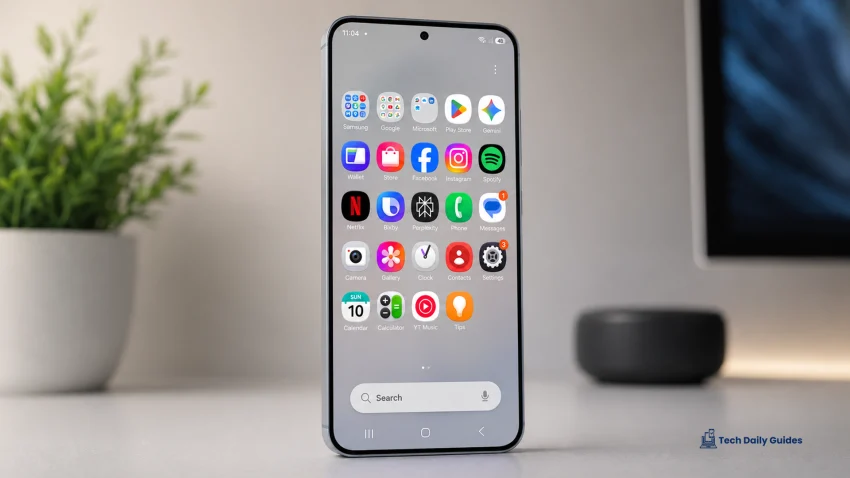
The Samsung Galaxy A57 5G looks like a strong mid-range upgrade on paper. It has a 6.7-inch Super AMOLED+ display, 120Hz refresh rate, 50MP main camera with OIS, 5,000 mAh battery, 45W wired charging, IP68 water resistance, Exynos 1680 chipset, and One UI 8.5 based on Android 16.
But even a good phone can run into problems after setup, after a software update, or after months of daily use.
This guide brings together the most common issues Galaxy A57 owners may need help with, including battery drain, overheating, 5G problems, Wi-Fi issues, fingerprint errors, camera quality problems, storage concerns, and slow charging.
Common Samsung Galaxy A57 Issues
The most common problems you may experience include:
| Category | Common Issues |
|---|---|
| Battery | Fast drain, overnight battery loss, background app usage |
| Charging | Slow charging, 45W charging not working, USB-C moisture warning |
| Network | 5G not showing, mobile data not working, weak signal |
| Wi-Fi and Bluetooth | Wi-Fi disconnecting, Bluetooth audio cutting out, hotspot failure |
| Camera | Blurry photos, focus problems, poor social media camera quality |
| Display | Flickering, dim screen, 120Hz not feeling smooth |
| Security | Fingerprint not working, face unlock failure, lock screen problems |
| Storage | 128GB filling up, no microSD card, Smart Switch transfer issues |
| Performance | Lag, app crashes, update bugs, gaming frame drops |
5G, Mobile Data, SIM, and eSIM Problems
The Galaxy A57 supports 5G, dual SIM options, and eSIM, but network problems can still happen depending on your carrier, location, plan, and software settings.
You may notice that 5G does not appear even with a 5G SIM, or the phone keeps switching between 5G and LTE. In some cases, calls may work, but mobile data does not. This usually points to carrier provisioning, APN settings, network mode, SIM activation, or poor local coverage.
Helpful guides to check:
- Why 5G Is Not Showing Even With a 5G SIM
- How to Fix Mobile Data That Suddenly Stops Working
- Why the Phone Keeps Switching From 5G to LTE
- What to Do When the Phone Shows “Emergency Calls Only”
- How to Fix No Signal After Inserting a SIM Card
- Why One SIM Works but the Other Does Not
- How to Set Up eSIM Without Breaking Your Main Line
- Why Calls Work but Mobile Data Does Not
- How to Fix Slow 5G Speeds
- Why Roaming Data Does Not Work While Traveling
- How to Reset APN Settings Safely
- What to Do When the Phone Loses Service Randomly
For most network issues, start by restarting the phone, checking your SIM status, turning Airplane Mode on and off, confirming your mobile plan, and resetting network settings only when simpler fixes fail.
Wi-Fi, Bluetooth, and Hotspot Issues
Wi-Fi and Bluetooth problems can be frustrating because they affect almost everything: streaming, gaming, work calls, earbuds, file sharing, and mobile hotspot use.
If Wi-Fi connects but has no internet, the issue may be your router, DNS, private DNS settings, VPN, or saved network profile. If Bluetooth keeps cutting out, check distance, battery level, codec compatibility, and whether another device is trying to connect at the same time.
Common topics worth reading:
- Why Wi-Fi Connects but Has No Internet
- How to Fix Wi-Fi That Keeps Disconnecting
- Why Wi-Fi Speeds Feel Slower Than Expected
- How to Fix Bluetooth Devices That Will Not Pair
- Why Bluetooth Audio Keeps Cutting Out
- How to Fix Galaxy Buds That Keep Disconnecting
- Why Mobile Hotspot Is Not Working
- How to Fix Wi-Fi Calling Problems
- Why Quick Share Cannot Find Nearby Devices
- How to Reset Wi-Fi and Bluetooth Settings
- Why Bluetooth Audio Has Delay During Videos or Games
The safest first step is to forget and reconnect to the Wi-Fi or Bluetooth device. If that fails, restart both devices before resetting all network settings.
Display, Touchscreen, and 120Hz Problems
The Galaxy A57 uses a 6.7-inch Super AMOLED+ screen with a 120Hz refresh rate and HDR10+ support. That should make scrolling, gaming, and video playback feel smooth, but display issues can still appear.
Some users may notice that the screen feels less smooth than expected, brightness looks too low outdoors, or touch input feels delayed. These issues can come from power saving mode, adaptive refresh behavior, screen protectors, accidental touch protection, app limitations, or software bugs.
Important display guides:
- Why the Screen Does Not Feel Smooth at 120Hz
- How to Fix Touch Delay or Missed Touches
- Why the Screen Looks Too Dim Outdoors
- How to Fix Screen Flickering
- What to Do If a Green Line Appears on the Display
- Why the Screen Turns Off During Calls
- How to Stop Accidental Touches
- Best Display Settings for Battery Life
- How to Fix Always On Display Not Working
- Why HDR Videos Look Too Dark or Too Bright
- How to Reduce Eye Strain on the AMOLED Display
If the screen feels slow, check Motion Smoothness, Power Saving Mode, and app-specific refresh rate behavior first.
Camera, Photo Quality, and Focus Problems
The phone has a 50MP main camera with OIS, a 12MP ultrawide camera, and a 5MP macro camera. That setup should be good for everyday shots, landscapes, portraits, and casual close-ups.
Still, camera problems can happen. Photos may look blurry, colors may seem washed out, or social media apps may reduce image quality after upload. The 50MP mode also does not always mean every photo will look sharper, especially in low light.
Useful camera articles:
- Why Photos Look Blurry Even With OIS
- How to Fix Camera Focus Problems
- Why the 50MP Camera Mode Does Not Look Sharper
- Best Camera Settings for Clearer Photos
- Why Low-Light Photos Look Noisy
- How to Fix Washed-Out or Overbright Photos
- Why the Ultrawide Camera Looks Softer Than the Main Camera
- How to Take Better Photos of Moving Subjects
- Why Portrait Mode Misses the Subject Edge
- How to Reset Camera Settings Without Losing Photos
- Why Photos Look Worse Inside Instagram, TikTok, or Snapchat
- How to Use Best Face Without Making Photos Look Unnatural
- Why the Camera App Opens Slowly
- What to Do When the Camera Shows a Black Screen
For sharper photos, clean the lens, tap to focus, avoid digital zoom, use good lighting, and use the main camera whenever quality matters.
Video Recording and Audio Capture Problems
The Galaxy A57 can record 4K video at 30fps and 1080p video at up to 60fps. The selfie camera also supports 4K recording and HDR video.
For most users, the biggest video concerns will be stabilization, file size, low-light grain, audio capture, and upload quality on apps like TikTok, Instagram, Facebook, and YouTube Shorts.
Video guides to check:
- Best Video Settings for Everyday Recording
- Should You Record in 4K or 1080p 60fps?
- Why Videos Look Shaky Even With Stabilization
- How to Fix Missing Audio in Recorded Videos
- Why TikTok and Instagram Compress Video Quality
- How to Reduce Large Video File Sizes
- Why Low-Light Videos Look Grainy
- How to Record Better Selfie Videos
- Why HDR Selfie Videos Look Different After Uploading
- How to Stop the Phone From Heating Up While Recording
Use 4K when quality matters. Use 1080p 60fps when you want smoother motion and smaller files.
Battery Drain and Power Management
A 5,000 mAh battery should be enough for a full day for many users, but battery life depends heavily on display brightness, 5G, background apps, camera use, gaming, and setup activity.
Fast battery drain is common during the first few days because the phone may still be restoring apps, syncing accounts, indexing files, and learning your usage. If the drain continues after a week, it is time to check app activity and settings.
Battery topics to read:
- Why the Battery Drains Fast After Setup
- How to Fix Battery Drain After a One UI Update
- Why the Battery Drops Quickly Overnight
- How to Find Apps That Are Draining Power
- Best Battery Settings to Change First
- Should You Turn Off 5G to Save Battery?
- Why the Battery Drains Faster on Mobile Data Than Wi-Fi
- How to Reduce Battery Use From Always On Display
- Why the Phone Uses Battery While Idle
- How to Improve Screen-On Time Without Slowing the Phone Too Much
- Why Battery Life Feels Worse After Restoring From an Old Phone
- What to Do When Device Care Shows High Background Usage
Start with Settings > Battery > Battery usage. Look for apps using more power than expected, especially social media, navigation, games, and apps running in the background.
Charging, USB-C, and Moisture Warning Problems
The Galaxy A57 supports 45W wired charging, but you need the right charger and cable to get the best charging speed. A regular USB-C charger may work, but it may not trigger the fastest charging mode.
Charging problems may also come from heat, lint inside the USB-C port, damaged cables, third-party chargers, or the moisture detection system.
Charging guides worth reading:
- Why 45W Fast Charging Is Not Working
- How to Fix Slow Charging With a Compatible Charger
- Why the Phone Says “Moisture Detected”
- What to Do When the USB-C Port Will Not Charge
- Why the Phone Gets Warm While Charging
- Can You Charge the Phone After It Gets Wet?
- How to Choose the Right 45W Charger
- Why the Battery Percentage Gets Stuck While Charging
- How to Fix USB OTG Not Working
- Why Wired USB-C Earphones Are Not Detected
For best results, use a charger that supports Samsung’s fast charging standard and a cable rated for the required power output.
Overheating and Thermal Throttling
Some warmth is normal during setup, charging, gaming, camera use, video calls, updates, or heavy multitasking. The problem starts when the phone becomes hot during light use, slows down, closes apps, dims the screen, or shows a temperature warning.
Heat can be caused by background syncing, poor network signal, heavy apps, high brightness, gaming, camera recording, or charging while using the phone.
Overheating guides:
- Why the Phone Gets Hot During Normal Use
- How to Stop Overheating During Video Calls
- Why the Phone Heats Up While Using the Camera
- How to Reduce Heat While Gaming
- Why the Phone Gets Warm After a Software Update
- What to Do When Heat Makes Apps Lag
- How to Check Which Apps Are Causing Heat
- Is It Normal for the Phone to Get Warm During Initial Setup?
- When Overheating Means You Should Contact Support
Remove the case, close heavy apps, lower brightness, switch from mobile data to Wi-Fi when possible, and avoid charging while gaming or recording video.
One UI 8.5 Bugs, Updates, and System Performance
The Galaxy A57 ships with Android 16 and One UI 8.5. Software updates can bring new features and security fixes, but they can also cause temporary battery drain, app crashes, notification changes, or performance issues.
After a major update, give the phone time to settle. Apps may need to update, background services may re-index data, and system behavior may change for a few days.
Helpful One UI topics:
- Why the Phone Feels Slow After an Update
- How to Fix App Crashes After Updating
- What to Do When a Software Update Fails
- Why Animations Feel Choppy
- How to Clear the Cache Partition After an Update
- Why Notifications Change After Updating
- How to Fix Battery Drain After a Security Patch
- Should You Factory Reset After a Major Android Update?
- How to Make One UI Feel Faster
- What to Do When Settings or System Apps Keep Crashing
- How to Fix Delayed Touch Response After Updating
If performance gets worse after an update, update your apps, restart the phone, check Device Care, and clear the cache partition before considering a factory reset.
Fingerprint, Face Unlock, and Lock Screen Problems
The phone uses an under-display optical fingerprint sensor. This type of sensor can be affected by dry fingers, dirty screens, thick screen protectors, poor finger placement, or fingerprints registered too quickly.
If unlocking takes several tries, the fix is usually simple: clean the screen, remove problematic screen protectors, delete old fingerprints, and register the same finger again from multiple angles.
Security guides:
- Why the Fingerprint Sensor Is Not Working
- How to Fix Slow Fingerprint Recognition
- Why the Sensor Fails After Installing a Screen Protector
- How to Re-Register Fingerprints Properly
- What to Do When Unlocking Takes Several Tries
- How to Improve Fingerprint Accuracy With Touch Sensitivity
- Why Face Unlock Does Not Work in Low Light
- How to Set Up Secure Folder Correctly
- What to Do If You Forget the Lock Screen Password
- Why Banking Apps Do Not Accept Fingerprint Login
After installing a new screen protector, always re-register your fingerprints.
Storage, Backup, and File Transfer Problems
The Galaxy A57 comes in 128GB, 256GB, and 512GB storage options, but it does not have a microSD card slot. That makes storage planning more important, especially if you record 4K video, play large games, or keep photos offline.
The 128GB model can work for light users, but 256GB is safer for most people. The 512GB model is better for heavy camera users, gamers, and people who keep a lot of files on the phone.
Storage and transfer topics:
- Is 128GB Enough Without a microSD Card?
- How to Free Up Storage Without Deleting Important Files
- Why System Storage Takes Too Much Space
- How to Move Photos and Videos to a USB-C Drive
- Why Smart Switch Gets Stuck During Transfer
- How to Transfer WhatsApp Chats Safely
- Why Cloud Backup Is Not Completing
- How to Find and Delete Duplicate Photos
- What to Delete First When Storage Is Full
- How to Use USB OTG for File Transfers
- Why Large 4K Videos Fill Storage Quickly
- Should You Buy 256GB or 512GB?
Check storage before transferring everything from your old phone. Bringing years of unused apps, videos, and downloads can make a new phone feel cluttered on day one.
Apps, Notifications, and Background Activity
App problems often come from battery restrictions, notification permissions, outdated app versions, or restored settings from an older phone.
Messaging apps are especially sensitive. If WhatsApp, Messenger, Gmail, or Telegram notifications arrive late, check whether the app is sleeping in the background.
Useful app guides:
- Why Apps Keep Crashing
- How to Fix Apps That Will Not Open
- Why Notifications Arrive Late
- How to Fix WhatsApp Notifications Not Showing
- Why Gmail Does Not Sync Automatically
- How to Stop Apps From Sleeping Too Aggressively
- Why Some Apps Close in the Background
- How to Fix Messenger Bubbles Not Working
- Why Play Store Downloads Get Stuck
- How to Fix “App Not Installed” Errors
- Best Background App Settings for Messaging Apps
For important messaging apps, allow notifications, remove strict battery limits, and keep background data enabled.
Samsung Wallet, NFC, and Contactless Payment Problems
The Galaxy A57 supports NFC, but availability may depend on the market or region. That matters because Samsung Wallet, Google Wallet, tap-to-pay, and transit card features may not work the same way everywhere.
If tap-to-pay fails, the issue may be NFC settings, banking support, region compatibility, screen lock requirements, or card verification.
Payment-related guides:
- Why NFC Is Missing or Not Available
- How to Fix Tap to Pay Not Working
- Why Samsung Wallet Cannot Add a Card
- How to Check If Contactless Payments Are Supported in Your Region
- Why Google Wallet Fails at Checkout
- How to Turn On NFC Correctly
- Why Transit Cards Do Not Work
- Samsung Wallet vs Google Wallet: Which Should You Use?
- What to Do When Payment Verification Fails
Before troubleshooting, confirm that your phone model, region, bank, and payment app all support contactless payments.
Gaming, GPU Performance, and Frame Drops
The Exynos 1680 and Xclipse 550 GPU should make the Galaxy A57 capable enough for popular games, but gaming performance still depends on graphics settings, heat, battery level, background apps, and game optimization.
If games lag after a few minutes, the phone may be heating up and reducing performance to control temperature.
Gaming topics:
- Best Settings for Mobile Legends
- Best Settings for PUBG Mobile
- Best Settings for Genshin Impact
- Why Games Lag After a Few Minutes
- How to Reduce FPS Drops
- Why the Phone Gets Hot While Gaming
- How to Use Game Booster Properly
- Is the Exynos 1680 Good Enough for Heavy Games?
- Should You Buy the 8GB or 12GB RAM Version for Gaming?
- Why Touch Controls Feel Delayed While Playing
- How to Balance Graphics Quality and Battery Life
For smoother gameplay, use balanced graphics settings, close background apps, avoid playing while charging, and keep the phone cool.
Sound, Speakers, Microphone, and Calls
The phone has stereo speakers, but sound problems can still appear during calls, videos, games, voice notes, or Bluetooth playback.
A muffled speaker may be caused by dust, water, case blockage, app volume settings, or Bluetooth routing. Microphone problems may come from blocked mic holes, app permissions, or noise cancellation behavior.
Audio and call guides:
- Why the Speaker Sounds Low or Muffled
- How to Fix No Sound During Videos
- Why the Microphone Does Not Work During Calls
- How to Fix Poor Call Quality
- Why Voice Notes Sound Too Quiet
- How to Fix Audio Delay With Bluetooth Earbuds
- Why Stereo Speakers Sound Uneven
- What to Do When the Phone Rings but No Sound Plays
- How to Fix Echo During Calls
Check volume levels, restart the phone, remove the case, clean speaker openings gently, and test sound in more than one app.
Water Resistance, Durability, and Build Issues
The Galaxy A57 has an IP68 rating, which means it is designed to resist dust and temporary water immersion under controlled conditions. That does not make it fully waterproof.
Water resistance can weaken over time, especially after drops, repairs, heat exposure, or physical damage. Salt water, pool water, soap, and pressure can also increase risk.
Durability topics:
- What IP68 Really Means
- Is the Phone Waterproof or Just Water Resistant?
- What to Do After Dropping the Phone in Water
- How to Dry the USB-C Port Safely
- Does Water Damage Void the Warranty?
- Why a Moisture Warning Appears After Cleaning the Phone
- How to Protect the Glass Back From Cracks
- Best Case Types for a Thin Aluminum-Frame Phone
Do not charge the phone while the USB-C port is wet. Dry it properly first.
AI Features, Photo Editing, and Smart Tools
Samsung’s newer mid-range phones are getting more smart editing and search features, but not every AI feature available on premium Galaxy models may be available on every A-series device or in every region.
If a smart feature is missing, check your software version, Samsung account status, region, language, and app updates.
AI and editing topics:
- How to Use AI Photo Editing Features
- Why Object Eraser Is Missing
- How to Remove People or Objects From Photos
- Why AI Edits Look Unnatural
- How to Use Text Extraction From Images
- Why Smart Suggestions Are Not Appearing
- How to Use Voice Recorder Transcription
- Which AI Features Work Offline?
- Do AI Features Drain Battery?
For photo editing, keep your Gallery app updated and check whether the feature requires an internet connection.
Setup, Smart Switch, and First-Day Settings
A lot of problems start during setup. Restoring too much from an old phone can bring back outdated apps, messy settings, unnecessary background processes, and storage clutter.
A cleaner setup can make the phone feel faster and more reliable.
Setup guides:
- Best Settings to Change After Setup
- How to Transfer Data From an Old Phone
- What to Do Before Using Smart Switch
- Why Restored Apps Bring Old Problems Back
- How to Set Up Samsung and Google Accounts Properly
- How to Move From iPhone to Samsung
- How to Set Up Dual SIM and eSIM on Day One
- What to Turn Off for Better Privacy
- How to Remove Unwanted Preinstalled Apps
After setup, update apps, check storage, configure backups, and review privacy permissions before installing everything you used on your old phone.
Accessories and Missing Features
The Galaxy A57 does not have a 3.5mm headphone jack or microSD card slot. That means buyers need to plan around USB-C audio, Bluetooth earbuds, cloud storage, and larger internal storage options.
Accessory topics:
- Does It Have a Headphone Jack?
- Does It Support microSD Cards?
- Best USB-C Earphones and Adapters to Use
- Why Wired Earphones Are Not Working
- Does It Come With a Charger in the Box?
- Best Screen Protectors for the Fingerprint Sensor
- Best Chargers for 45W Fast Charging
- Best Cases for Camera Protection
- Why Some USB-C Accessories Do Not Work
For the best experience, buy accessories that specifically support Samsung phones, USB-C audio, and 45W fast charging.
Buying, Upgrade, and Model Choice Questions
The Galaxy A57 sits above cheaper A-series phones but below Samsung’s flagship models. That makes it a practical choice for users who want a better display, stronger build, improved performance, and longer software support without buying a premium Galaxy S model.
Buying guides to consider:
- Is the 128GB Version Enough?
- Should You Buy 256GB or 512GB?
- Is the 12GB RAM Version Worth It?
- Is It Worth Upgrading From an Older Galaxy A Phone?
- Who Should Buy This Instead of the Galaxy A37?
- Who Should Choose This Over the Galaxy S FE Series?
- Is the Aluminum Frame Worth Paying More For?
- Is the Camera Good Enough Without a Telephoto Lens?
- Is 45W Charging Fast Enough in 2026?
- How Long Will the Phone Get Software Updates?
The 256GB model is the safest choice for most buyers. The 512GB version makes sense if you record a lot of video, download large games, or want to keep the phone for several years.
Final Thoughts
The Samsung Galaxy A57 5G has the hardware to be a strong everyday phone: a bright AMOLED+ display, 5G support, a 50MP OIS camera, 45W charging, IP68 resistance, and long software support.
The best way to avoid problems is to set it up carefully, choose the right storage size, use a compatible charger, keep apps updated, and check battery, network, and notification settings early.
If an issue appears, start with the simple fixes first. Restart the phone, update apps, check Device Care, review permissions, and reset only the affected settings before doing anything drastic like a factory reset.
FAQ
What are the most common Samsung Galaxy A57 problems?
The most common issues to watch for are battery drain, overheating, slow charging, 5G not showing, Wi-Fi or Bluetooth connection problems, camera focus issues, fingerprint recognition problems, app crashes, notification delays, and storage getting full.
Is the 128GB version enough?
The 128GB version is enough for light users who stream content, use cloud storage, and do not record many 4K videos. For gaming, heavy camera use, offline downloads, and long-term ownership, the 256GB or 512GB version is the better choice because there is no microSD card slot.
Why does the phone get warm during setup or after an update?
Warmth during setup or after an update is usually normal because the phone may be restoring apps, syncing data, indexing files, updating apps, and learning usage patterns. It becomes a concern if the phone stays hot during light use, drains quickly, slows down, or shows repeated temperature warnings.