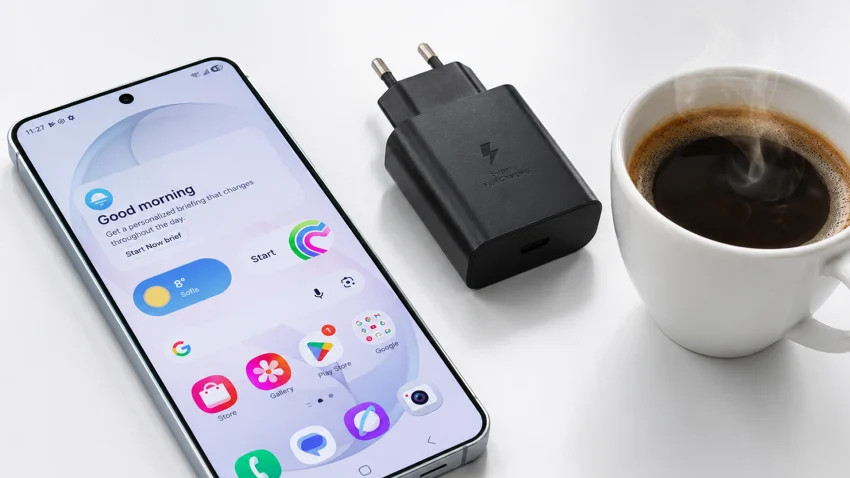
If your Galaxy S26 feels hot in your hand, it is normal to be concerned. A little warmth can happen during charging, setup, gaming, video recording, software updates, or heavy use. But if the phone feels uncomfortably hot, keeps heating up during normal use, or shows temperature warnings, it needs attention.
Overheating can come from apps, charging habits, display settings, weak signal, 5G, hotspot use, location services, software bugs, or a battery problem. Samsung says Galaxy devices may feel warm in some conditions, including charging, but overheating can cause issues and should be managed carefully.
This guide follows a practical troubleshooting style: simple fixes first, clear steps, plain-English explanations, exact setting paths where possible, and warnings before advanced steps.
Quick Tip
If your Galaxy S26 is overheating, stop heavy use, unplug it, remove the case, turn off Mobile Hotspot if it is on, and move the phone away from heat. Let it cool before using it again.
Once it cools, restart the phone, check Settings > Battery > Battery usage, update your apps and software, review charging conditions, reduce display and performance settings, and test in Safe Mode if the issue continues.
If the phone is too hot to hold, swollen, damaged, shutting down, or refusing to charge, stop using it and contact Samsung support.
Galaxy S26 overheating diagnostic table
| Symptom | Likely cause | First thing to check |
|---|---|---|
| Hot while charging | Fast charging, wireless charging, thick case, hot room, faulty charger | Charger, cable, case, charging surface |
| Hot during gaming | High performance use, graphics load, high brightness | Game settings, brightness, refresh rate |
| Hot on mobile data | Weak signal or 5G searching | Signal strength and network mode |
| Hot after update | Apps or system re-optimising | App updates and 24 to 48 hour monitoring |
| Hot while idle | Background app, syncing, location, system issue | Settings > Battery > Battery usage |
| Hot when using camera | Video recording, high brightness, image processing | Camera use, sunlight, recording time |
| Repeated temperature warnings | Device thermal protection triggered | Stop use, cool phone, contact support if repeated |
| Swelling or screen lifting | Possible battery fault | Stop using the phone and contact support |
Best order to try these fixes
- Stop using the phone and let it cool.
- Remove the case and unplug the charger.
- Restart your Galaxy S26.
- Check battery usage and background apps.
- Update apps and phone software.
- Adjust charging habits.
- Reduce display and performance settings.
- Check mobile signal and 5G.
- Review location, Bluetooth, hotspot, and camera use.
- Test in Safe Mode.
- Reset settings only if needed.
- Contact Samsung support if the issue continues.
Is it normal for the Galaxy S26 to get warm?
Yes, some warmth is normal.
Your Galaxy S26 may feel warm when it is:
- Charging
- Fast charging
- Wirelessly charging
- Being set up for the first time
- Restoring data from a backup
- Updating apps or system software
- Playing games
- Recording video
- Using the camera for a long time
- Using GPS navigation
- Streaming video
- Using Mobile Hotspot
- Using 5G in a weak signal area
Warm is usually fine. Hot, uncomfortable, or persistent heat is different. Samsung says temporary temperature rise can happen depending on usage or environment, and device protection features such as charging limits may activate when needed.
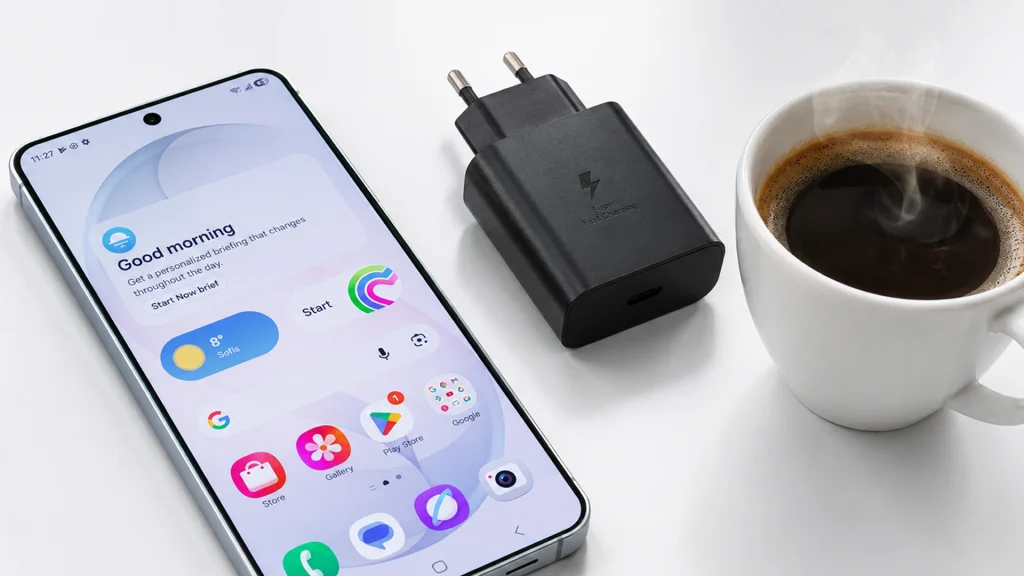
Galaxy S26 overheating can happen during charging, heavy use, or when the device is exposed to warm surroundings.
Why is my Galaxy S26 overheating?
Your Galaxy S26 may overheat because the phone is working harder than usual or cannot release heat properly.
Common causes include:
- Heavy apps or games
- Too many background apps
- High screen brightness
- Long camera use
- Mobile Hotspot
- GPS navigation
- Poor mobile signal
- 5G searching or switching
- Charging in a hot place
- Using the phone while charging
- Thick cases trapping heat
- Wireless charging heat
- Fast charging heat
- Damaged charging cable or adapter
- A recent software update
- A third-party app problem
- Battery or hardware fault
Start with the cooling steps below before changing deeper settings.
What to do first if your Galaxy S26 feels too hot
If the phone feels too hot, cool it down before troubleshooting.
- Stop gaming, video recording, navigation, or any heavy app.
- Unplug the charger.
- Remove the phone case.
- Turn off Mobile Hotspot if it is on.
- Move the phone out of direct sunlight.
- Put it on a cool, dry surface.
- Let it rest for several minutes.
- Restart the phone once it feels cooler.
Do not put the phone in a fridge or freezer. Sudden temperature changes can cause moisture or condensation inside the device.
Do not keep charging the phone if it is severely hot, swollen, damaged, or showing charging problems.
1. Restart your Galaxy S26
A restart can stop temporary background processes, stuck apps, or system tasks that may be causing heat.
- Press and hold the Side button and Volume down button.
- Tap Restart.
- Wait for the phone to turn back on.
- Use the phone normally.
- Check whether the heat returns.
This will not delete your personal files.
If the phone heats up again quickly after restart, check battery usage and background apps next.
2. Check battery usage and background apps
Apps can cause heat and battery drain when they run too long in the background. This is common with games, video apps, social media, navigation, camera apps, and apps that use location often.
To check battery usage:
- Open Settings.
- Tap Battery.
- Tap Battery usage.
- Look for apps using more battery than expected.
- Tap an app to review its background activity options.
Look for:
- An app you barely used but appears high on the list
- An app running in the background for a long time
- A recently installed app
- A game or video app using high battery
- An app using location often
- An app that started causing problems after an update
If one app stands out, try this:
- Update the app.
- Force close it.
- Limit its background activity.
- Uninstall it for a day if the issue continues.
- Check whether the phone stays cooler.
To limit unused apps:
- Open Settings.
- Tap Battery.
- Tap Background usage limits.
- Turn on Put unused apps to sleep.
- Review Sleeping apps and Deep sleeping apps.
Do not put important apps into deep sleep if you rely on their alerts. This includes banking, work, messaging, calendar, health, and security apps.
3. Avoid charging in hot conditions
Charging creates heat. Fast charging and wireless charging can create more heat than standard wired charging. This is more noticeable if the phone is already warm.
Avoid charging:
- In direct sunlight
- Inside a hot car
- Under a pillow or blanket
- On a bed or sofa
- While gaming
- While using Mobile Hotspot
- While recording video
- With a thick case on
- In a very warm room
Better charging habits:
- Place the phone on a hard, flat surface.
- Remove the case if the phone feels warm.
- Stop heavy use while charging.
- Use wired charging if wireless charging makes the phone too warm.
- Let the phone cool before charging if it is already hot.
If the phone shows a temperature warning or pauses charging, leave it unplugged until it cools.
4. Check your charger and cable
A poor-quality, damaged, or incompatible charger can cause heat, slow charging, or charging interruptions.
Check the charger and cable:
- Unplug the phone.
- Inspect the cable for fraying, bending, burn marks, or exposed wiring.
- Check the adapter for damage.
- Try another approved USB-C cable and charger.
- Plug the phone into a wall outlet instead of a power board or computer.
- Check whether the phone still gets hot.
Use genuine or approved charging accessories where possible. If the phone only overheats with one cable or charger, stop using that accessory.
Do not use a damaged cable.
5. Reduce display and performance settings
The display and performance settings can make the phone work harder, especially during gaming, streaming, or outdoor use.
Lower brightness
- Open Settings.
- Tap Display.
- Lower the Brightness slider.
- Turn on Adaptive brightness if you want the phone to adjust brightness automatically.
High brightness can heat the phone, especially outdoors.
Reduce refresh rate
A higher refresh rate can make scrolling smoother, but it may use more power and create more heat during heavy use.
- Open Settings.
- Tap Display.
- Tap Motion smoothness.
- Choose a lower or standard option if battery life and heat matter more than smoother scrolling.
The exact wording may vary by software version and model.
Turn off Always On Display
- Open Settings.
- Tap Lock screen and AOD.
- Tap Always On Display.
- Turn it off, or set it to show only when tapped.
This helps if the phone gets warm or drains battery while idle.
Check performance profile
Some Galaxy models include a performance profile setting.
- Open Settings.
- Tap Battery.
- Tap More battery settings.
- Look for Performance profile.
- Choose a lighter option if available.
A lighter profile may reduce peak performance slightly, but it can help with heat and battery life.
Check gaming settings
If overheating happens during games:
- Lower the game’s graphics quality.
- Lower the frame rate.
- Close other apps before playing.
- Avoid gaming while charging.
- Take breaks if the phone becomes uncomfortable to hold.
If only one game causes overheating, the game may be too demanding or poorly optimised.
6. Check mobile signal and 5G usage
Poor signal can make your Galaxy S26 work harder. The phone may keep searching, switching towers, or trying to maintain a weak 5G connection.
This can happen:
- Inside buildings
- In basements
- In lifts
- In rural areas
- While travelling
- In areas with patchy 5G
If overheating happens mostly on mobile data, test 4G/LTE instead of 5G for a day.
- Open Settings.
- Tap Connections.
- Tap Mobile networks.
- Tap Network mode.
- Choose a 4G/LTE option if available.
If the phone stays cooler on Wi-Fi or 4G/LTE, weak signal or 5G may be part of the problem.
7. Update apps and phone software
Updates can fix bugs that cause overheating, battery drain, or background app problems.
To update your phone:
- Open Settings.
- Tap Software update.
- Tap Download and install.
- Install any available update.
To update apps:
- Open the Google Play Store.
- Tap your profile icon.
- Tap Manage apps and device.
- Tap Update all, or update the apps you use most.
Also check the Galaxy Store for Samsung app updates.
A phone may also feel warmer for a short period after a major update. This can happen while the phone updates apps, refreshes background services, or re-optimises system behaviour.
What to do after an update:
- Restart the phone.
- Update all apps.
- Charge it normally.
- Use it for 24 to 48 hours.
- Check whether the heat improves.
If one app started causing heat after the update, update it, limit it, or uninstall it temporarily.
8. Review location, Bluetooth, hotspot, and camera use
Some features can create heat because they keep sensors, radios, or processing running.
Check location access
- Open Settings.
- Tap Location.
- Tap App permissions.
- Look for apps set to use location All the time.
- Change apps to Allow only while using the app where suitable.
Navigation, weather, fitness, delivery, camera, and social apps often request location access. Not all of them need it all day.
Turn off Bluetooth when not needed
- Swipe down from the top of the screen.
- Tap Bluetooth to turn it off when you are not using accessories.
Bluetooth is not usually the biggest heat source, but it is worth checking if the phone is already struggling.
Turn off Mobile Hotspot
Mobile Hotspot can heat the phone quickly.
- Open Settings.
- Tap Connections.
- Tap Mobile Hotspot and Tethering.
- Turn off Mobile Hotspot when you are finished.
If your phone is hot and battery is dropping fast, check hotspot early.
Limit long camera sessions
Video recording, high-resolution photos, and camera effects can make the phone warm.
If the camera is causing heat:
- Stop recording.
- Close the Camera app.
- Let the phone cool.
- Avoid recording in direct sunlight.
- Reduce long continuous recording where possible.
9. Test in Safe Mode
Safe Mode helps you check whether a third-party app is causing overheating. In Safe Mode, your Galaxy S26 runs with downloaded third-party apps disabled.
Samsung says Safe Mode can be used to remove problematic third-party apps from a Galaxy device.
To enter Safe Mode:
- Press and hold the Side button and Volume down button.
- Touch and hold Power off.
- Tap Safe mode.
- Wait for the phone to restart.
- Use the phone for a while and check whether it still gets hot.
If the phone does not overheat in Safe Mode, a downloaded app may be the cause.
What to do next:
- Restart the phone to exit Safe Mode.
- Remove recently installed apps one at a time.
- Start with battery-heavy apps, cleaners, launchers, games, VPNs, and apps installed outside the Play Store.
- Check the phone after each removal.
If the phone still overheats in Safe Mode, the issue may be system, charging, battery, signal, or hardware related.
10. Reset settings or factory reset only if needed
Use reset options only after simpler fixes.
Start with Reset all settings. This is less drastic than a factory reset and may fix a hidden setting problem.
Reset all settings
- Open Settings.
- Tap General management.
- Tap Reset.
- Tap Reset all settings.
- Review the warning on screen.
- Tap Reset settings if you are ready.
This should not delete your photos, apps, or personal files. Still, read the warning screen before confirming.
Factory reset
Only consider a factory reset if:
- The overheating continues after all other fixes
- Safe Mode does not help
- The issue started after a major software problem
- Samsung support recommends it
- You have backed up your data
A factory reset erases your personal information and data. Back up your phone before doing it.
When to contact Samsung support
Contact Samsung support or visit an authorised service centre if the overheating continues after you have checked apps, charging, display settings, signal, updates, and Safe Mode.
Get help sooner if you notice:
- The phone is too hot to hold
- The phone shows repeated temperature warnings
- The phone swells or the screen lifts
- The phone shuts down unexpectedly
- The phone will not charge properly
- The charging port smells burnt or looks damaged
- The phone overheats while idle
- The phone overheats in Safe Mode
- The battery drains suddenly with heat
- The phone only works normally while plugged in
Stop using the phone if you suspect swelling, battery damage, or serious overheating. Do not press on the screen or back cover. Do not keep charging a phone that appears physically damaged.
Galaxy S26 overheating checklist
Use this checklist before booking a repair.
- Stop heavy apps and let the phone cool
- Remove the case
- Unplug the charger if the phone is hot
- Move the phone out of direct sunlight
- Restart your Galaxy S26
- Check Settings > Battery > Battery usage
- Update apps in Google Play Store and Galaxy Store
- Update phone software
- Lower screen brightness
- Reduce refresh rate if needed
- Turn off Always On Display
- Avoid gaming while charging
- Avoid wireless charging if it makes the phone hot
- Check charger and cable for damage
- Test 4G/LTE instead of 5G
- Turn off Mobile Hotspot when not needed
- Review location permissions
- Turn off Bluetooth when not needed
- Test in Safe Mode
- Reset all settings if simpler fixes do not help
- Contact Samsung support if overheating continues
Conclusion
Cool the phone first. Stop heavy use, unplug it, remove the case, and move it away from heat.
Then check the likely causes in order: restart the phone, review battery usage, update apps and software, adjust charging habits, reduce display and performance settings, check signal and 5G, review hotspot and location use, and test in Safe Mode.
If the Galaxy S26 still overheats after these steps, or if you notice swelling, charging failure, shutdowns, or repeated temperature warnings, contact Samsung support or visit an authorised service centre.
FAQs
Why does my Galaxy S26 get hot while charging?
Charging creates heat, especially with fast charging or wireless charging. Remove the case, avoid using the phone while charging, and charge it on a hard, flat surface.
Is it bad if my Galaxy S26 gets warm?
A little warmth is normal during charging, gaming, video recording, updates, or setup. Persistent heat, temperature warnings, sudden shutdowns, or swelling are not normal.
Why does my Galaxy S26 overheat when using 5G?
Weak or patchy 5G can make the phone work harder to stay connected. Test 4G/LTE for a day and compare heat and battery life.
Can a bad app make my Galaxy S26 overheat?
Yes. A stuck, poorly optimised, or background-heavy app can cause heat and battery drain. Check Settings > Battery > Battery usage to find unusual activity.