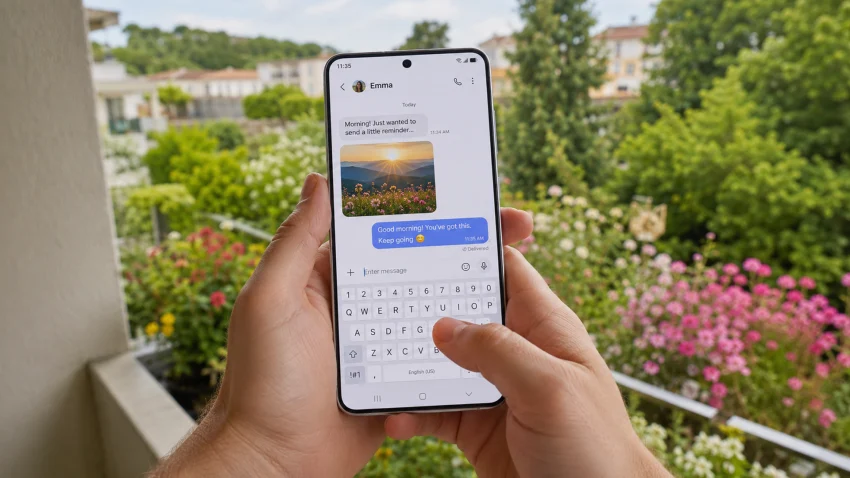
If your Galaxy S26 is having texting problems, restart the phone, check your signal, turn Airplane mode on and off, clear the Messages app cache, and make sure the contact is not blocked. If SMS or MMS still fails, reset mobile network settings and contact your carrier to confirm your plan, SIM, and message center settings.
This guide covers the most common Galaxy S26 texting issues, including:
- Texts not sending
- Texts not receiving
- Delayed messages
- Group texts not working
- MMS pictures not sending
- RCS stuck on “Connecting”
- Messages showing “Not delivered”
- One contact unable to text you
- Verification codes not arriving
- Texting problems after a software update
Before You Start: Identify the Exact Texting Problem
Do this first. It saves time.
Ask yourself:
- Can you send texts but not receive them?
- Can you receive texts but not send them?
- Does it happen with one contact or everyone?
- Does it affect SMS only, RCS only, MMS only, or group chats?
- Are verification codes the only messages missing?
- Did the problem start after switching phones, changing SIMs, or installing an update?
If texting fails with everyone, think network, SIM, carrier, or app issue.
If it fails with only one contact, check blocked numbers, contact format, RCS status, and whether that person recently switched phones.
1. Restart the Galaxy S26 and Refresh the Network
Start with the fastest fix.
A restart can clear temporary glitches in the Messages app, SIM connection, mobile network registration, and RCS service.
- Press and hold the Side button and Volume Down button.
- Tap Restart.
- Wait for the phone to turn back on.
- Open Messages.
- Send a short test message to yourself or a trusted contact.
Then refresh the network:
- Swipe down from the top of the screen.
- Tap Airplane mode.
- Wait 10 seconds.
- Tap Airplane mode again to turn it off.
- Wait for signal bars to return.
- Try texting again.
If messages work after this, the problem was likely a temporary network or app connection issue.
2. Check Signal, Mobile Plan, and Service Outage
Texting depends on your carrier connection, even when you use a modern Samsung phone.
Check these first:
- Do you have signal bars?
- Does mobile data work?
- Can you make calls?
- Is your carrier showing an outage in your area?
- Is your account active and paid?
- Does your plan include SMS, MMS, and mobile data?
- Are you roaming?
- Are you in a low-signal area?
For MMS and many RCS features, mobile data or a working data connection may be required. If you can send plain SMS but cannot send photos, videos, or group messages, your data connection or APN settings may be involved.
Try moving to a better signal area. If you are indoors, go near a window or step outside for a quick test.
3. Clear the Messages App Cache
If the Messages app is slow, stuck, crashing, or not sending properly, clear its cache.
This will not delete your text messages.
For Samsung Messages or Google Messages:
- Open Settings.
- Tap Apps.
- Select Messages.
- Tap Storage.
- Tap Clear cache.
- Restart your Galaxy S26.
- Open Messages and test again.
If you use both Samsung Messages and Google Messages, check which one is set as default.
- Open Settings.
- Tap Apps.
- Tap Choose default apps.
- Tap SMS app.
- Select the messaging app you actually want to use.
Do not keep switching between messaging apps while troubleshooting. Pick one, test it, then move to the next fix.
4. Check Blocked Numbers and Spam Settings
If you are not receiving texts from one person, that number may be blocked or filtered as spam.
Check blocked numbers in Samsung Messages:
- Open Samsung Messages.
- Tap the three-dot menu.
- Tap Settings.
- Tap Block numbers and spam.
- Tap Block numbers.
- Remove the contact if they are listed.
Check blocked numbers in Google Messages:
- Open Google Messages.
- Tap your profile icon.
- Tap Spam and blocked.
- Review blocked conversations.
- Unblock the contact if needed.
Also check the contact’s number format. If you saved a number without the correct country code, texting can fail, especially after switching phones, carriers, or regions.
Use the full format when possible:
- US example: +1 followed by the number
- UK example: +44 followed by the number
- Philippines example: +63 followed by the number
Then delete the old conversation thread and start a new one if needed.
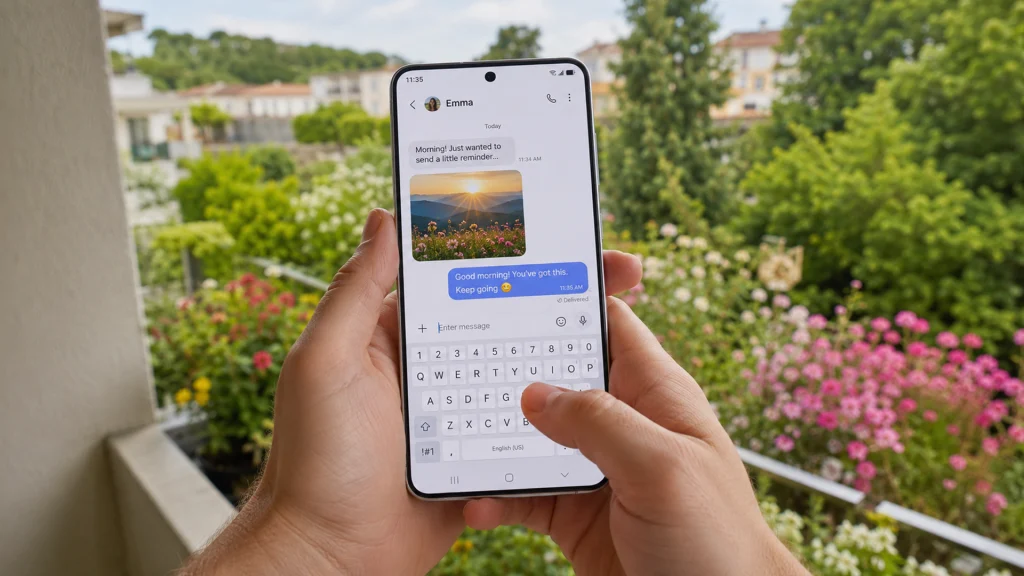
Galaxy S26 texting problems can affect SMS, MMS, group messages, or message delivery when network settings, carrier service, or messaging app features are not working properly.
5. Turn RCS Chats Off and On Again
RCS can cause confusion because it behaves more like internet messaging than traditional SMS. When RCS gets stuck, messages may stay on “Sending,” “Connecting,” or fail to deliver.
If you use Google Messages:
- Open Google Messages.
- Tap your profile icon.
- Tap Messages settings.
- Tap RCS chats.
- Turn RCS chats off.
- Restart your Galaxy S26.
- Go back to RCS chats.
- Turn it on again.
If RCS still fails, try sending the message as SMS instead.
In Google Messages, tap the failed message and look for an option like “Switch to text” or “Send as SMS/MMS,” depending on your app version and carrier.
Use this rule:
| Problem | What to try |
|---|---|
| RCS stuck on Connecting | Turn RCS off and on |
| Message not delivered to one person | Send as SMS |
| Group chat acting strange | Start a new group thread |
| Verification code missing | Turn off spam filtering temporarily and check carrier blocks |
| Recently switched phones | Disable RCS on the old phone if possible |
If you recently moved from another Android phone, RCS may still be tied to the old device for a short time. Turning RCS off and back on usually helps.
6. Fix MMS and Group Text Problems
MMS handles picture messages, video messages, and many group texts. If regular SMS works but MMS does not, check mobile data first.
- Swipe down from the top of the screen.
- Make sure Mobile data is on.
- Turn off Wi-Fi temporarily.
- Try sending a picture message.
- Restart the phone if it fails.
Then check group messaging settings.
In Samsung Messages:
- Open Samsung Messages.
- Tap the three-dot menu.
- Tap Settings.
- Tap More settings.
- Tap Multimedia messages.
- Make sure MMS-related options are enabled if available.
In Google Messages:
- Open Google Messages.
- Tap your profile icon.
- Tap Messages settings.
- Tap Advanced.
- Check group messaging and auto-download MMS settings.
If group texts arrive as separate individual replies, the conversation may be using SMS instead of MMS or RCS. Start a new group thread after checking settings.
7. Update the Messages App, Carrier Services, and Galaxy S26 Software
Texting problems often come from outdated app or carrier components.
Update your messaging app:
- Open the Google Play Store.
- Search for Google Messages.
- Tap Update if available.
If you use Samsung Messages:
- Open the Galaxy Store.
- Search for Samsung Messages.
- Install any available update.
Then update Carrier Services if it appears in the Play Store.
After that, update your Galaxy S26:
- Open Settings.
- Tap Software update.
- Tap Download and install.
- Install any available update.
- Restart the phone.
After a major software update, give the phone a few minutes to settle before testing messages again. Apps and network services may still be refreshing in the background.
8. Check the SIM or eSIM
A bad SIM connection can cause texting issues, especially if calls and mobile data are also unreliable.
For a physical SIM:
- Turn off the Galaxy S26.
- Remove the SIM tray.
- Check the SIM for scratches, dirt, or damage.
- Reinsert it carefully.
- Turn the phone back on.
- Test SMS again.
For eSIM:
- Open Settings.
- Tap Connections.
- Tap SIM manager.
- Make sure the correct eSIM is active.
- Confirm that calls, messages, and mobile data are assigned to the right SIM or eSIM.
This matters on dual-SIM setups. Your Galaxy S26 may be trying to send texts through the wrong SIM, inactive eSIM, or a line without SMS support.
Check this:
- Open Settings.
- Tap Connections.
- Tap SIM manager.
- Review Preferred SIMs.
- Set Messages to the correct SIM.
If the SIM is old, damaged, or recently moved from another phone, ask your carrier for a replacement SIM or eSIM refresh.
9. Reset Mobile Network Settings
Use this when basic fixes do not work.
Resetting mobile network settings can fix broken carrier registration, SMS routing, MMS problems, and connection issues. It does not delete your photos, apps, or text messages, but it may reset mobile network preferences.
- Open Settings.
- Tap General management.
- Tap Reset.
- Tap Reset mobile network settings or Reset network settings.
- Confirm the reset.
- Restart your Galaxy S26.
- Try sending and receiving texts again.
Depending on your One UI version, the wording may mention Wi-Fi and Bluetooth too. If you reset all network settings, you may need to reconnect Wi-Fi and Bluetooth devices afterward.
10. Check the Message Center Number and Carrier Restrictions
If your Galaxy S26 can receive texts but cannot send SMS, the message center number may be wrong or missing. This setting depends on your carrier.
In Samsung Messages, check here:
- Open Samsung Messages.
- Tap the three-dot menu.
- Tap Settings.
- Tap More settings.
- Tap Text messages.
- Tap Message center.
- Compare the number with your carrier’s official message center number.
Do not guess this number. Get it from your carrier.
Also contact your carrier if:
- SMS fails after switching phones
- You recently changed SIM or eSIM
- Verification codes do not arrive
- MMS does not work on mobile data
- You are roaming
- Your account has spending limits or restrictions
- Your line was recently ported from another carrier
- Texts fail only with short codes or bank codes
Carrier-side blocks are easy to miss. Your phone can look fine, but SMS may still be blocked at the account or network level.
Best Fixes by Texting Problem
| Texting problem | Most likely cause | Best fix |
|---|---|---|
| Texts not sending to anyone | Network, SIM, message center, carrier issue | Restart, check signal, reset mobile network settings |
| Texts not receiving | Blocked number, carrier issue, spam filter | Check blocked numbers and spam settings |
| RCS stuck on Connecting | RCS registration issue | Turn RCS off and on |
| Picture messages not sending | Mobile data or MMS settings | Turn on mobile data and check MMS settings |
| Group texts split into separate replies | MMS or RCS group setting | Check group messaging settings |
| One contact cannot text you | Blocked contact or wrong number format | Unblock and resave with country code |
| Verification codes not arriving | Carrier block, spam filter, short-code issue | Check spam, contact carrier |
| Texting problem after update | App cache or system bug | Clear cache and update apps |
| Texts delayed | Weak signal or carrier congestion | Test in stronger signal area |
| Dual-SIM texting problem | Wrong SIM selected | Check SIM manager |
What Not to Do
Avoid these mistakes while troubleshooting:
- Do not factory reset right away.
- Do not delete message threads before backing up anything important.
- Do not keep switching between Samsung Messages and Google Messages.
- Do not enter a random message center number.
- Do not assume it is a phone defect before testing signal, SIM, and carrier status.
- Do not remove your eSIM unless your carrier can help you reactivate it.
A factory reset should be the last step, not the first one.
When to Contact Your Carrier or Samsung
Contact your carrier first if:
- You cannot send SMS to anyone
- MMS does not work on mobile data
- Verification codes are missing
- The issue started after changing SIM, eSIM, carrier, or plan
- Texts fail while calls and mobile data also have problems
- You need the correct message center number
Contact Samsung Support if:
- The Messages app keeps crashing
- Texting fails after all network and carrier checks
- The problem started after a system update
- The SIM works fine in another phone but not in your Galaxy S26
- Your phone has physical or liquid damage
Final Advice
Most Galaxy S26 texting problems come from the network, Messages app cache, RCS registration, blocked contacts, MMS settings, SIM issues, or carrier restrictions. Start with the simple fixes, then move toward network reset and carrier checks.
The fastest practical order is:
- Restart the phone.
- Toggle Airplane mode.
- Clear the Messages app cache.
- Check blocked numbers.
- Turn RCS off and on.
- Test SMS and MMS separately.
- Update apps and software.
- Check SIM or eSIM settings.
- Reset mobile network settings.
- Contact your carrier for message center or account restrictions.
If the SIM works normally in another phone but texting still fails on your Galaxy S26 after these steps, Samsung Support should check the device.
FAQs
Why is my Galaxy S26 not sending text messages?
Your Galaxy S26 may not send texts because of weak signal, carrier issues, a SIM or eSIM problem, incorrect message center settings, blocked service, a Messages app glitch, or broken network settings. Start with a restart, check signal, clear the Messages cache, then reset mobile network settings.
Why am I not receiving texts on my Galaxy S26?
Check blocked numbers, spam folders, signal strength, SIM status, and carrier restrictions. If only one person cannot text you, remove them from blocked numbers and resave their number with the correct country code.
Why are Galaxy S26 picture messages not sending?
Picture messages usually use MMS, which often needs mobile data. Turn on mobile data, check MMS settings, update the Messages app, and confirm that your mobile plan supports MMS.
Sources
- Samsung Support, “Messages on Samsung phone are slow, do not send, or cannot be received.” (Samsung au)
- Samsung Support, “Call and text messages blocking issues with Galaxy phone.” (Samsung au)
- Samsung Australia Support, “Unable to send or receive Text Messages.” (Samsung au)
- Samsung Hong Kong Support, “I’m unable to send SMS text messages from Galaxy smartphone. How do I fix this?” (Samsung au)
- Samsung Support, “Issues with mobile network connection on Samsung phone or tablet.” (Samsung au)