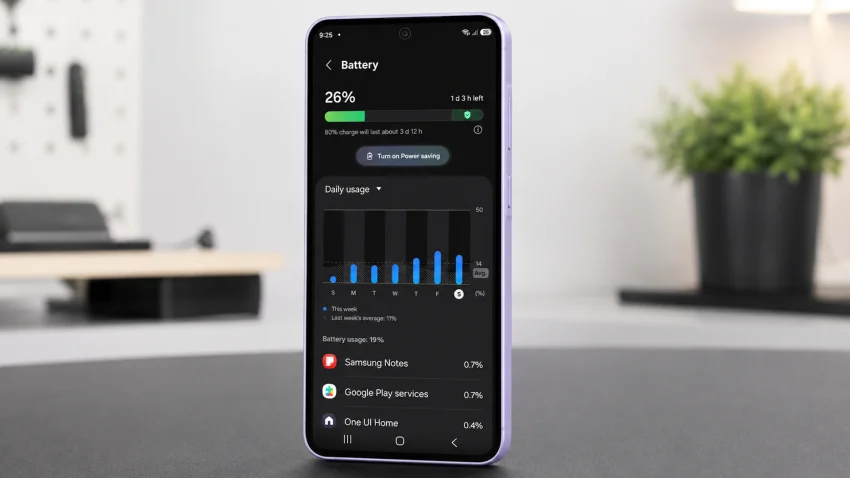
If your Samsung Galaxy A37 5G battery is draining fast, the most likely causes are background apps, high screen brightness, 5G signal hunting, Always On Display, gaming, location services, outdated software, or poor app behavior after setup or an update.
The Galaxy A37 5G has a 5,000 mAh battery, so it should comfortably last through normal daily use. If it loses power quickly while idle, heats up during basic tasks, or drops heavily overnight, something is using power in the background.
Start with the battery usage screen. That tells you where the drain is coming from instead of guessing.
Common Signs of Battery Drain on the Galaxy A37 5G
Your Galaxy A37 5G may have a battery drain problem if:
- Battery drops more than 10 to 15 percent overnight with little use
- The phone gets warm while idle
- A single app uses a large amount of battery
- Battery drains faster on mobile data than Wi-Fi
- The phone loses power quickly after a software update
- Screen-on time is much lower than usual
- The battery drops fast during calls, gaming, video, or navigation
- Charging seems normal, but the battery drains again quickly
A little battery drain is normal. Fast drain during light use is not.
1. Check Which Apps Are Using the Most Battery
Do this first. It is the quickest way to find the real cause.
- Open Settings.
- Tap Battery.
- Tap Battery usage.
- Check the apps at the top of the list.
- Look for apps using high battery even when you barely used them.
Pay attention to apps like:
- TikTok
- YouTube
- Messenger
- Chrome
- Google Maps
- Games
- VPN apps
- Shopping apps
- Weather apps
- Fitness or tracking apps
If one app is using too much battery, update it first. If it still drains power, restrict its background activity or uninstall it.
To restrict an app:
- Go to Settings.
- Tap Apps.
- Select the problem app.
- Tap Battery.
- Choose Restricted or Optimized.
Do not restrict apps you need for real-time alerts, such as banking, messaging, delivery, security, or work apps.
2. Turn On Power Saving When You Need Longer Battery Life
Power Saving is one of the easiest fixes when your Galaxy A37 5G is draining fast.
- Open Settings.
- Tap Battery.
- Tap Power saving.
- Turn it on.
- Choose which limits you want to apply.
Power Saving can reduce background activity, lower performance, limit brightness, and turn off battery-heavy features. It is useful when you are traveling, commuting, working long hours, or away from a charger.
Use Power Saving especially when:
- Battery is below 30 percent
- You are on mobile data all day
- You are in a weak signal area
- You are not gaming
- You need the phone to last until night
For daily use, you do not need to keep Power Saving on all the time. But if your battery is draining badly, use it while you investigate the cause.
3. Put Unused Apps to Sleep
Some apps keep running even when you are not using them. That background activity can quietly drain your Galaxy A37 5G battery.
Samsung gives you a built-in way to control this.
- Open Settings.
- Tap Battery.
- Tap Background usage limits.
- Turn on Put unused apps to sleep.
- Add rarely used apps to Sleeping apps or Deep sleeping apps.
Use Sleeping apps for apps you use occasionally.
Use Deep sleeping apps for apps you rarely open and do not need notifications from.
Good candidates for deep sleep include:
- Old games
- Shopping apps
- Travel apps
- Food delivery apps you rarely use
- Photo editors
- Promo apps
- Apps you installed once and forgot
Avoid deep sleeping apps that need instant notifications.
4. Lower Screen Brightness and Shorten Screen Timeout
The display is one of the biggest battery users on the Galaxy A37 5G.
A bright screen drains battery quickly, especially if you use the phone outdoors or watch videos for long periods.
Change these settings:
- Open Settings.
- Tap Display.
- Lower the brightness.
- Turn on Adaptive brightness if you want the phone to adjust automatically.
- Tap Screen timeout.
- Choose 30 seconds or 1 minute.
Also consider using Dark mode:
- Open Settings.
- Tap Display.
- Select Dark.
Dark mode can help reduce power use on AMOLED displays, especially if you use many apps with dark backgrounds.
A practical setup for better battery life:
| Setting | Recommended value |
|---|---|
| Brightness | 40 to 70 percent |
| Adaptive brightness | On |
| Screen timeout | 30 seconds or 1 minute |
| Dark mode | On |
| Extra brightness | Off |
If your phone drains fast mostly while the screen is on, this fix matters more than almost anything else.
5. Turn Off Always On Display
Always On Display is useful, but it still uses battery because the screen stays partially active.
If your Galaxy A37 5G loses battery while sitting on a desk or overnight, turn it off and compare the drain.
- Open Settings.
- Tap Lock screen and AOD.
- Tap Always On Display.
- Turn it off.
You can also set it to show only when tapped if that option is available.
Use this setup if you still want the feature:
- Show for tap only
- Lower brightness
- Disable unnecessary lock screen widgets
- Avoid animated lock screen content
This is a good fix for people who say, “I barely used my phone, but the battery still dropped.”
6. Use Wi-Fi When Possible and Manage 5G
5G is fast, but it can drain more battery when the signal is weak or unstable. Your Galaxy A37 5G may keep searching between 5G, LTE, and other network bands, which uses extra power.
Use Wi-Fi when you are at home, work, school, or anywhere with a stable connection.
If battery drain is worse on mobile data, try switching to LTE temporarily.
- Open Settings.
- Tap Connections.
- Tap Mobile networks.
- Tap Network mode.
- Choose an LTE option if available.
This is especially useful if:
- 5G signal is weak in your area
- The phone gets warm on mobile data
- Battery drains faster outside than indoors
- You stream video or use maps for long periods
- You commute through areas with poor reception
You can switch 5G back on when you need faster downloads.
7. Limit Location, Bluetooth, Hotspot, and Nearby Scanning
Location services, hotspot, Bluetooth scanning, and nearby device scanning can drain battery when they run too often.
You do not have to turn everything off forever. Just stop features you do not need.
Check location access:
- Open Settings.
- Tap Location.
- Tap App permissions.
- Change unnecessary apps from Allow all the time to Allow only while using the app.
Then check nearby scanning:
- Open Settings.
- Tap Connections.
- Tap More connection settings.
- Turn off Nearby device scanning if you do not use it.
Also turn off Mobile Hotspot when you are done using it. Hotspot can drain the battery very quickly because the phone acts like a mini router.
Keep Bluetooth on if you use a smartwatch, earbuds, or car connection. But if you do not need it, turning it off can reduce background activity.
8. Update the Phone and Your Apps
Battery drain can come from bugs. A system update or app update can fix poor battery behavior.
Update the Galaxy A37 5G:
- Open Settings.
- Tap Software update.
- Tap Download and install.
- Install any available update.
- Restart the phone.
Update apps:
- Open the Google Play Store.
- Tap your profile icon.
- Tap Manage apps and device.
- Tap Update all.
Also check the Galaxy Store, since some Samsung apps update there.
After a major update, your Galaxy A37 5G may drain faster for a day or two because it is optimizing apps, syncing data, and rebuilding background processes. If the drain continues after 48 hours, check battery usage again.
9. Reduce Gaming, Camera, and Video Drain
Some battery drain is not a fault. Gaming, camera use, video recording, navigation, and video calls are heavy tasks.
The Galaxy A37 5G will drain faster when you:
- Play graphics-heavy games
- Record long videos
- Use the camera outdoors at high brightness
- Use GPS navigation for long drives
- Make long video calls
- Stream on mobile data
- Use the phone while charging
To reduce drain during heavy use:
- Lower screen brightness.
- Use Wi-Fi instead of mobile data.
- Reduce game graphics and frame rate.
- Avoid gaming while charging.
- Close apps before recording video or gaming.
- Download videos or music on Wi-Fi before traveling.
- Take breaks during long gaming or camera sessions.
If the phone only drains fast during games or camera use, that is expected. If it drains fast while idle, look for background apps or signal issues.
10. Reset Settings if Battery Drain Started After Changes
If the battery drain started after changing many settings, installing several apps, or updating system options, reset settings before doing a factory reset.
This does not delete your photos, videos, or apps.
- Open Settings.
- Tap General management.
- Tap Reset.
- Tap Reset all settings.
- Confirm.
- Restart the phone.
This resets system preferences such as network, permissions, and display behavior, but keeps your personal files.
Use this when:
- You are not sure what changed
- Battery drain started suddenly
- You changed many settings recently
- Apps behave strangely
- The phone drains fast even after updates
A factory reset should be the last option, not the first.
Best Settings for Better Galaxy A37 5G Battery Life
Use this setup if you want a practical balance between battery life and normal performance.
| Setting | Best practical choice |
|---|---|
| Power saving | On when needed |
| Screen brightness | 40 to 70 percent |
| Screen timeout | 30 seconds or 1 minute |
| Always On Display | Off or tap to show |
| 5G | Use only where signal is strong |
| Background usage limits | On |
| Unused apps | Sleeping or deep sleeping |
| Location access | While using the app |
| Dark mode | On |
| Apps | Keep updated |
Final Advice
The best fix is to stop guessing and check Battery usage first. On the Galaxy A37 5G, fast battery drain usually comes from one of four things: a power-hungry app, high display use, weak 5G signal, or background activity.
Start with these fixes in order:
- Check Battery usage.
- Restrict problem apps.
- Turn on Background usage limits.
- Lower brightness and screen timeout.
- Turn off Always On Display.
- Use Wi-Fi or LTE when 5G signal is weak.
- Update the phone and apps.
If the Galaxy A37 5G still drains quickly while idle after all of this, reset all settings. If it still drains badly after a reset and software update, contact Samsung Support or visit a service center, especially if the phone also heats up or shuts down unexpectedly.
FAQs
Why is my Galaxy A37 5G battery draining overnight?
Overnight battery drain is usually caused by background apps, Always On Display, weak mobile signal, syncing, or notifications waking the phone. Turn off Always On Display, enable Background usage limits, use Wi-Fi if available, and check Battery usage in the morning.
Does 5G drain the Galaxy A37 5G battery faster?
Yes, 5G can drain more battery when the signal is weak or the phone keeps switching between 5G and LTE. If your battery lasts longer on Wi-Fi or LTE, use 5G only when you need faster mobile data.
Should I factory reset my Galaxy A37 5G for battery drain?
Not right away. Try checking Battery usage, restricting background apps, turning off Always On Display, lowering brightness, updating apps, and resetting all settings first. Use factory reset only if the phone still drains fast after every practical fix.
Sources
- Samsung Philippines, “Galaxy A37 5G Awesome Lavender 256 GB.”
https://www.samsung.com/ph/smartphones/galaxy-a/galaxy-a37-5g-awesome-lavender-256gb-sm-a376blvtphl/ - Samsung US, “Galaxy A37 5G.”
https://www.samsung.com/us/smartphones/galaxy-a37-5g/ - Samsung US Support, “Galaxy Battery Optimization.”
https://www.samsung.com/us/support/galaxy-battery/optimization/ - Samsung US Support, “Battery draining fast on Galaxy phones and tablets.”
https://www.samsung.com/us/support/troubleshoot/TSG10001538/ - Samsung Philippines Support, “What to do when your Samsung Galaxy device battery drains faster.”
https://www.samsung.com/ph/support/mobile-devices/what-to-do-when-your-samsung-galaxy-device-battery-drains-faster/ - Samsung Philippines Support, “Galaxy Battery Optimization.”
https://www.samsung.com/ph/support/galaxy-battery/optimization/