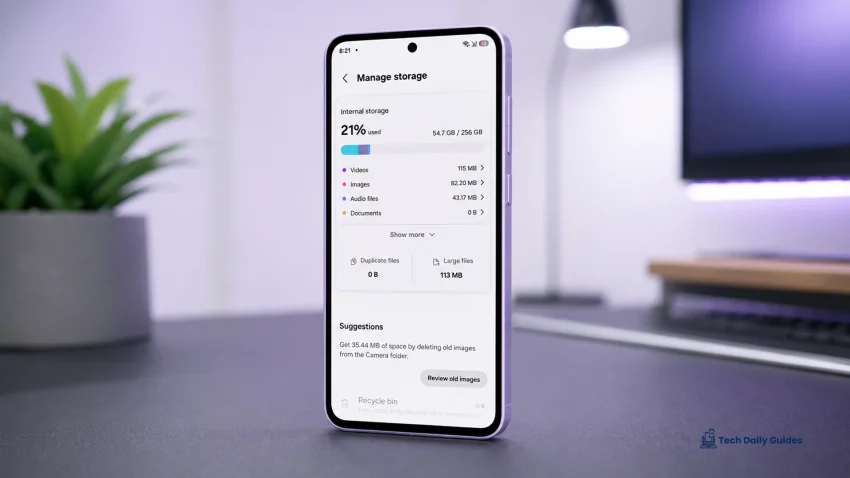
If your Galaxy A37 is lagging or stuttering in One UI 8.5, restart the phone, update your apps, check storage, close background apps, reduce animations, and give the phone time to settle if the lag started right after an update. If the phone also gets warm or drains battery fast, fix those first because heat and battery drain can directly cause performance throttling.
For related problems, use these guides too:
- Why Is the Battery Draining So Fast on Galaxy A37 5G?
- How to Fix Fast Battery Drain After a One UI Update
- Why the Phone Gets Hot During Normal Use
- Samsung Galaxy A37 Hub
A little slowdown after a major One UI update can be normal for the first day or two. Constant lag, freezing, delayed typing, choppy scrolling, or slow app switching after several days is different. That usually means something is running too hard in the background, storage is tight, apps need updates, or the phone is getting too warm.
Common Signs of Lag and Stuttering on the Galaxy A37
Your Galaxy A37 may have a performance issue if you notice:
- Choppy scrolling in apps
- Slow app opening
- Delayed keyboard response
- Stutter when swiping home
- Frame drops in animations
- Freezing when switching apps
- Camera app delay
- Lag after unlocking the phone
- Slow notification shade
- Random touch delay
- Games stuttering more than before
If the lag started right after installing One UI 8.5, start with update-related fixes. If it happens mostly when the phone is warm, read this related guide: Why the Galaxy A37 Gets Hot During Normal Use.
1. Restart the Galaxy A37 First
Start with a restart. It clears temporary memory issues, stuck background processes, and app glitches.
- Press and hold the Side button and Volume Down button.
- Tap Restart.
- Wait for the phone to fully boot.
- Unlock the phone and wait one minute.
- Test scrolling, typing, and app switching again.
This is especially useful if the lag appeared after:
- A One UI update
- A long gaming session
- Multiple apps were left open
- The phone got hot
- An app froze or crashed
- The phone had not been restarted for several days
If the phone feels smooth after restarting but slows down again later, check background apps and battery usage next.
2. Give One UI 8.5 Time to Settle After the Update
If the lag started immediately after installing One UI 8.5, do not panic on the first day.
After a major update, the Galaxy A37 may still be:
- Optimizing apps
- Rebuilding app caches
- Syncing accounts
- Updating Samsung services
- Updating Google Play services
- Re-indexing files and photos
- Relearning your battery and performance patterns
What to do:
- Keep the phone connected to stable Wi-Fi.
- Update apps from the Play Store and Galaxy Store.
- Restart once after all updates finish.
- Use the phone normally for 24 to 48 hours.
- Avoid heavy gaming or long video recording while the phone is still settling.
If the lag improves after a day or two, the update cleanup process was probably the cause.
If you also notice faster battery drain after updating, follow this guide: How to Fix Fast Battery Drain After a One UI Update.
3. Update Apps From the Play Store and Galaxy Store
Old apps can run poorly after a One UI update. They may stutter, crash, drain battery, or keep waking the phone in the background.
Update apps from the Play Store:
- Open the Google Play Store.
- Tap your profile icon.
- Tap Manage apps and device.
- Tap Update all.
Then update Samsung apps:
- Open the Galaxy Store.
- Tap Menu.
- Tap Updates.
- Install all available updates.
Restart the phone after updating everything.
This fix matters because Samsung apps, Google services, launchers, keyboards, camera tools, and background services often need updates to work cleanly with a new One UI version.
4. Check Storage and Free Up Space
Low storage can make the Galaxy A37 feel slow. Apps need free space for cache, updates, downloads, thumbnails, and temporary files.
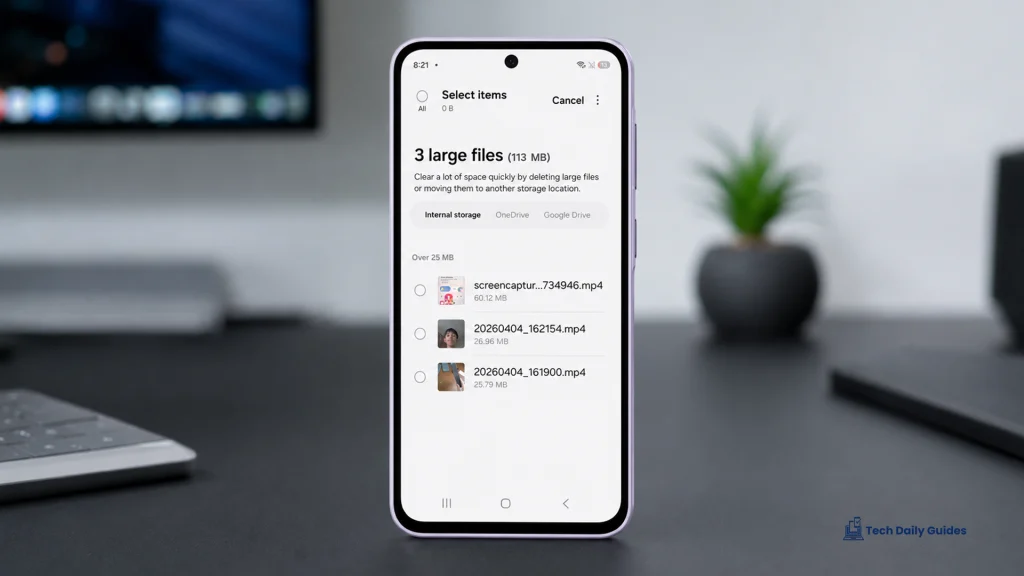
Check storage:
- Open Settings.
- Tap Device care.
- Tap Storage.
- Check how much free space remains.
Try to keep at least 10 to 15 percent of storage free.
Free up space by removing:
- Old screenshots
- Duplicate photos
- Long videos
- Downloaded movies
- Unused apps
- Old APK files
- Large WhatsApp or Messenger media
- Offline maps
- Unused game files
You can also move photos and videos to cloud storage, a computer, or an external drive.
If the phone lags when opening the Gallery, Camera, Files, or messaging apps, storage cleanup may help more than changing performance settings.
5. Close Background Apps and Limit Heavy Apps
Too many background apps can cause stuttering, especially when switching between apps or returning to the home screen.
First, close apps manually:
- Tap the Recent apps button or swipe up and hold.
- Tap Close all.
- Open the app that was lagging.
- Test again.
Then check which apps are using too much battery or background activity:
- Open Settings.
- Tap Battery.
- Tap Battery usage.
- Look for apps using power even when you barely used them.
Problem apps often include:
- Social media apps
- Video apps
- Games
- Shopping apps
- VPN apps
- Weather widgets
- Live wallpaper apps
- Cleaner or booster apps
- Fitness tracking apps
- Apps with constant notifications
To restrict a heavy app:
- Open Settings.
- Tap Apps.
- Select the app.
- Tap Battery.
- Choose Optimized or Restricted.
Do not restrict important apps if you need instant alerts.
If battery usage also looks abnormal, use this guide next: Why Is the Battery Draining So Fast on Galaxy A37 5G?.
6. Turn On Background Usage Limits
Background usage limits help stop rarely used apps from running too often.
- Open Settings.
- Tap Battery.
- Tap Background usage limits.
- Turn on Put unused apps to sleep.
- Add rarely used apps to Sleeping apps or Deep sleeping apps.
Use Sleeping apps for apps you open occasionally.
Use Deep sleeping apps for apps you rarely use and do not need notifications from.
Good apps to put into deep sleep include:
- Old games
- Shopping apps
- Food delivery apps
- Travel apps
- Promo apps
- Photo editors
- Apps you installed once and forgot
Avoid deep sleeping:
- Messaging apps
- Banking apps
- Security apps
- Work apps
- Calendar apps
- Delivery apps you actively use
- Health or emergency apps
This can improve both performance and battery life because fewer apps are waking the phone in the background.
7. Reduce Animations for a Faster Feel
If One UI 8.5 feels slow when swiping, opening apps, or switching screens, reduce animations.
First try Samsung’s built-in option:
- Open Settings.
- Tap Accessibility.
- Tap Vision enhancements.
- Turn on Reduce animations.
You can also reduce transparency and blur if available:
- Open Settings.
- Tap Accessibility.
- Tap Vision enhancements.
- Turn on Reduce transparency and blur if the option appears.
This does not increase the processor speed, but it can make the phone feel more responsive because transitions become simpler.
For a stronger change, use Developer options only if you are comfortable:
- Open Settings.
- Tap About phone.
- Tap Software information.
- Tap Build number seven times.
- Enter your lock screen PIN if asked.
- Go back to Settings.
- Tap Developer options.
- Set these to 0.5x:
- Window animation scale
- Transition animation scale
- Animator duration scale
Do not change random Developer options. Only adjust animation scale.
8. Disable RAM Plus or Lower It Temporarily
RAM Plus uses part of your storage as virtual memory. It can help with multitasking, but if the phone feels choppy after an update, it is worth testing a lower setting.
- Open Settings.
- Tap Device care.
- Tap Memory.
- Tap RAM Plus.
- Lower the value or turn it off if your One UI version allows it.
- Restart the phone.
Test the phone for one full day.
If app switching improves, keep the lower setting. If multitasking gets worse, turn RAM Plus back on or raise it again.
This is not a universal fix, but it is useful when the lag feels like app switching delay, keyboard delay, or home screen reloads.
9. Check If Heat Is Causing Performance Throttling
Heat can make the Galaxy A37 slow down. When the phone gets warm, One UI may reduce performance to protect the battery and internal components.
Signs that heat is causing lag:
- The phone is smooth when cool but slow when warm
- Games stutter after several minutes
- The screen dims during use
- Apps lag while charging
- Camera becomes slow outdoors
- The phone gets warm even with basic apps
What to do:
- Remove the case for a few minutes.
- Stop gaming, recording video, or using GPS.
- Avoid using the phone while charging.
- Move away from direct sunlight.
- Close background apps.
- Let the phone cool naturally.
Do not place the phone in a freezer or refrigerator.
If heat is part of the problem, follow the full guide here: Why the Phone Gets Hot During Normal Use.
10. Reset All Settings if Lag Continues
If the Galaxy A37 still lags after updating apps, freeing storage, reducing animations, and checking heat, reset all settings.
This does not delete photos, videos, apps, or personal files.
- Open Settings.
- Tap General management.
- Tap Reset.
- Tap Reset all settings.
- Confirm.
- Restart the phone.
- Test performance before changing settings again.
This can fix problems caused by settings that carried over poorly after a One UI update, including display behavior, app preferences, network settings, and system-level options.
Use this before considering a factory reset.
Best Fixes by Lag Type
| Lag or stutter problem | Best fix to try first |
|---|---|
| Lag started right after One UI 8.5 update | Wait 24 to 48 hours and update apps |
| Choppy scrolling | Reduce animations and update apps |
| Slow app opening | Free storage and close background apps |
| Keyboard delay | Restart, update keyboard app, check storage |
| Home screen stutter | Update Samsung apps and reduce widgets |
| Lag while gaming | Check heat, lower graphics, close apps |
| Lag while charging | Stop heavy use while charging |
| Lag with fast battery drain | Check Battery usage and background apps |
| Lag when phone gets warm | Follow the overheating guide |
| Lag after changing many settings | Reset all settings |
Quick Performance Setup for Galaxy A37 in One UI 8.5
Use this setup if you want smoother daily performance:
| Setting | Recommended setup |
|---|---|
| Storage | Keep 10 to 15 percent free |
| Background usage limits | On |
| Unused apps | Sleeping or deep sleeping |
| Animations | Reduced or 0.5x |
| RAM Plus | Test lower setting |
| App updates | Play Store and Galaxy Store updated |
| Brightness | Moderate, not max all day |
| 5G | Use where signal is stable |
| Case | Remove if phone gets warm |
| Restart | Once every few days |
Final Advice
Do not factory reset your Galaxy A37 right away. Most One UI 8.5 lag and stuttering problems come from update cleanup, outdated apps, low storage, background apps, animations, heat, or battery-related background activity.
Start with this order:
- Restart the phone.
- Wait 24 to 48 hours if the update was just installed.
- Update apps from the Play Store and Galaxy Store.
- Free up storage.
- Limit background apps.
- Reduce animations.
- Check if heat is causing slowdown.
- Reset all settings only if the lag continues.
If lag comes with fast battery drain, use this guide: Why Is the Battery Draining So Fast on Galaxy A37 5G?
If the lag started after a One UI update and the battery is also draining quickly, read: How to Fix Fast Battery Drain After a One UI Update
If the phone gets warm during normal use, fix that first here: Why the Phone Gets Hot During Normal Use
For more related fixes, visit the main Samsung Galaxy A37 guide hub.
FAQs
Why is my Galaxy A37 lagging after the One UI 8.5 update?
Your Galaxy A37 may lag after One UI 8.5 because the phone is still optimizing apps, rebuilding caches, syncing data, or updating background services. Wait 24 to 48 hours, update all apps, restart the phone, and check Battery usage for apps running too much in the background.
Does low storage cause stuttering on the Galaxy A37?
Yes. Low storage can cause slow app opening, Gallery lag, camera delay, update problems, and general stuttering. Keep at least 10 to 15 percent of storage free and remove large videos, unused apps, old downloads, and duplicate media.
Should I factory reset my Galaxy A37 if One UI 8.5 is laggy?
Not immediately. Try restarting, waiting 48 hours after the update, updating apps, freeing storage, reducing animations, limiting background apps, checking heat, and resetting all settings first. Factory reset should be the last option if practical fixes fail
Sources
- Samsung Support, “Galaxy Battery Optimization.”
https://www.samsung.com/us/support/galaxy-battery/optimization/ - Samsung Support, “Battery draining fast on Galaxy phones and tablets.”
https://www.samsung.com/us/support/troubleshoot/TSG10001538/ - Samsung Support, “Keep your Galaxy device at its normal operating temperature.”
https://www.samsung.com/us/support/answer/ANS10002887/ - Tech Daily Guides, “Why Is the Battery Draining So Fast on Galaxy A37 5G?”
https://techdailyguides.com/galaxy-a37-5g-battery-draining-fast/ - Tech Daily Guides, “How to Fix Fast Battery Drain After a One UI Update.”
https://techdailyguides.com/galaxy-a37-5g-battery-drain-after-one-ui-update/ - Tech Daily Guides, “Why the Phone Gets Hot During Normal Use.”
https://techdailyguides.com/galaxy-a37-5g-gets-hot-during-normal-use/ - Tech Daily Guides, “Samsung Galaxy A37.”
https://techdailyguides.com/samsung-galaxy-a37/