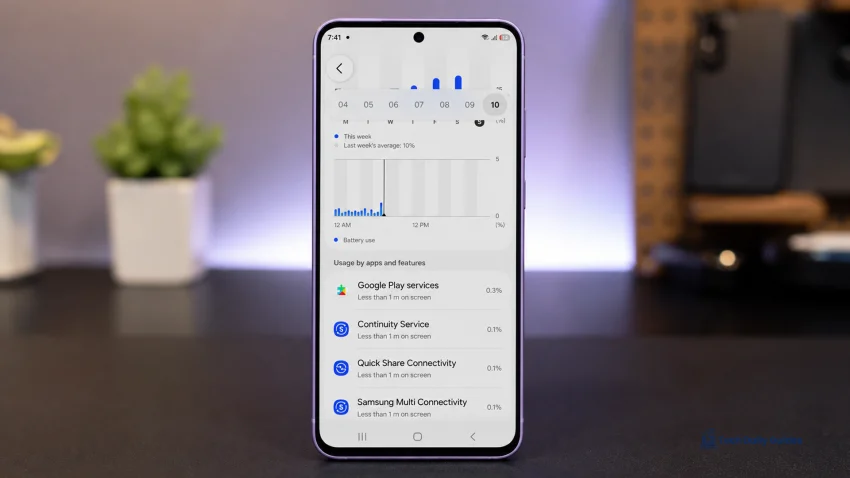
If your Galaxy A37 5G gets hot during normal use, the most common causes are background apps, weak 5G signal, high screen brightness, charging while using the phone, location services, recent One UI updates, or a power-hungry app draining the battery.
A little warmth is normal when using mobile data, camera, maps, video calls, or several apps at once. But if the phone gets hot while idle, loses battery quickly, or becomes uncomfortable to hold, you should check battery usage, background activity, network settings, and recent app behavior.
For related battery troubleshooting, read our full guide: Why Is the Battery Draining So Fast on the Galaxy A37 5G?
If the heat started after an update, use this guide too: How to Fix Fast Battery Drain After a One UI Update on Galaxy A37 5G
For more fixes and related guides, visit the Samsung Galaxy A37 hub.
Is It Normal for the Galaxy A37 5G to Get Warm?
Yes, some warmth is normal. Your Galaxy A37 5G may feel warm when it is working harder than usual.
This can happen when you:
- Use 5G mobile data for a long time
- Stream videos
- Record videos
- Use GPS navigation
- Join video calls
- Download large files
- Install or update many apps
- Charge the phone
- Use the phone right after a One UI update
- Use the phone in a hot room or under sunlight
The problem is different when the phone gets hot during light tasks, such as scrolling messages, checking email, or sitting idle on a desk. That usually means something is running in the background or the phone is struggling with signal, battery drain, or a software issue.
1. Check Battery Usage to Find the App Causing Heat
Start here. Heat and battery drain often come from the same place.
If an app keeps running in the background, it can make the Galaxy A37 5G warm even when you are not doing anything heavy. Samsung’s battery tools can help you spot high background usage, and Samsung also recommends checking battery and device care when battery usage seems unusual.
- Open Settings.
- Tap Battery.
- Tap Battery usage.
- Check the apps at the top of the list.
- Look for apps using a lot of power even when you barely used them.
Common heat-causing apps include:
- Games
- TikTok, Facebook, Instagram, and other social apps
- YouTube and streaming apps
- Google Maps or navigation apps
- Camera apps
- VPN apps
- Weather apps
- Fitness tracking apps
- Apps that sync photos, files, or messages
If one app looks suspicious:
- Open Settings.
- Tap Apps.
- Select the app.
- Tap Battery.
- Choose Optimized or Restricted.
Do not restrict messaging, banking, alarm, security, health, or work apps if you rely on instant notifications.
If you also notice fast battery drain, follow the complete checklist here: Galaxy A37 5G battery draining fast.
2. Close Background Apps and Restart the Phone
Sometimes the Galaxy A37 5G gets hot because too many apps are still active after multitasking, streaming, navigation, or app updates.
Samsung lists processor-intensive apps, multitasking, app installation, streaming, and GPS tracking as common reasons a Galaxy device may give off heat.
Try this first:
- Open Recent apps.
- Tap Close all.
- Press and hold the Side button and Volume Down button.
- Tap Restart.
- Wait for the phone to turn back on.
- Use the phone normally for 15 to 30 minutes.
- Check if it still gets hot.
A restart is especially helpful if the phone started heating after:
- A long video call
- A gaming session
- Using maps or GPS
- Installing several app updates
- Switching between many apps
- A recent One UI update
If the heat goes away after restarting but returns later, check Battery usage again. One app may be waking the phone repeatedly.
3. Use Wi-Fi or LTE When 5G Signal Is Weak
5G can make the Galaxy A37 5G warmer when the signal is weak. The phone may keep searching, switching between bands, or using more power to stay connected.
This is common if the phone gets hotter:
- Outdoors on mobile data
- While commuting
- In malls, basements, or elevators
- In areas with weak signal
- During video streaming on 5G
- While using maps or hotspot
Try Wi-Fi first when available.
If the phone still gets hot on mobile data, switch to LTE temporarily:
- Open Settings.
- Tap Connections.
- Tap Mobile networks.
- Tap Network mode.
- Choose an LTE option if available.
You do not have to keep 5G off forever. Use 5G when the signal is strong or when you need faster downloads. But if the phone gets hot during normal browsing, messaging, or streaming on mobile data, LTE may be the better everyday setting in weak-signal areas.
This also helps with battery life, so it connects directly with our guide on why the Galaxy A37 5G battery drains fast.
4. Lower Brightness and Turn Off Heat-Heavy Display Features
The screen can add a lot of heat, especially if brightness stays high.
Samsung’s overheating guidance recommends reducing screen brightness and turning off features such as Wi-Fi, GPS, and Bluetooth when they are not needed.
Use these display settings:
- Open Settings.
- Tap Display.
- Lower the brightness to a comfortable level.
- Turn on Adaptive brightness if you prefer automatic adjustment.
- Tap Screen timeout.
- Choose 30 seconds or 1 minute.
- Turn on Dark mode if you like using it.
Then check Always On Display:
- Open Settings.
- Tap Lock screen and AOD.
- Tap Always On Display.
- Turn it off or set it to show only when tapped.
A practical setup:
| Setting | Recommended option |
|---|---|
| Brightness | 40 to 70 percent |
| Adaptive brightness | On |
| Screen timeout | 30 seconds or 1 minute |
| Dark mode | On |
| Always On Display | Off or tap to show |
| Extra brightness | Off |
If the phone mostly gets hot while the screen is on, this fix can make a noticeable difference.
5. Stop Using the Phone While Charging
Charging already creates heat. Using the phone while charging adds more load from the screen, processor, network, and apps.
Samsung advises disconnecting the charger and closing running apps if a Galaxy device feels too warm. Samsung also recommends using a Samsung-approved charger and cable and charging on a hard, flat surface.
Do this instead:
- Plug the phone into a proper charger.
- Place it on a hard, flat surface.
- Remove thick cases if the phone already feels warm.
- Let it charge without gaming, video calls, camera use, or streaming.
- Unplug it before using heavy apps.
Avoid charging:
- Under a pillow
- On a bed
- Inside a bag
- In direct sunlight
- While using hotspot
- While playing games
- During long video calls
If the Galaxy A37 5G only gets hot while charging, test another compatible charger and cable. A poor charger or damaged cable can make heat problems worse.
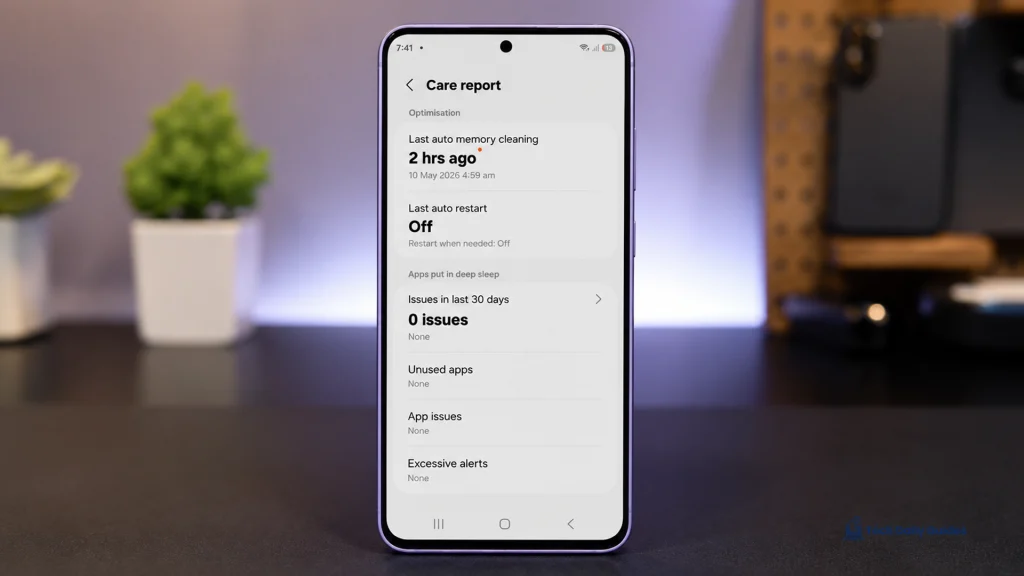
6. Put Unused Apps to Sleep
Some apps do not need to run all day. If they keep refreshing, syncing, or sending notifications, they can warm up the phone and drain the battery.
Samsung’s battery optimization guidance includes restricting background usage and using Power saving to limit high-power features and background activity.
Set unused apps to sleep:
- Open Settings.
- Tap Battery.
- Tap Background usage limits.
- Turn on Put unused apps to sleep.
- Add rarely used apps to Sleeping apps or Deep sleeping apps.
Good apps to put into deep sleep:
- Old games
- Promo apps
- Shopping apps you rarely use
- Food delivery apps
- Travel apps
- Photo editors
- Apps you installed for one-time use
Do not deep sleep apps that need instant notifications.
Avoid deep sleeping:
- Messaging apps
- Banking apps
- Alarm apps
- Security apps
- Work apps
- Calendar apps
- Health tracking apps you use daily
If background drain is your main problem, you will probably benefit from the broader battery article here: Why Is the Battery Draining So Fast on the Galaxy A37 5G?
7. Check if the Heat Started After a One UI Update
If your Galaxy A37 5G started getting hot after a One UI update, the cause may be temporary. After an update, the phone may optimize apps, sync accounts, rebuild caches, and relearn usage patterns. Some users also report battery drain after major One UI updates, and the practical fix is often to update apps, wait briefly, and check background usage rather than reset the phone immediately.
Try this update-specific checklist:
- Wait 24 to 48 hours after the update.
- Restart the phone once.
- Update apps from the Play Store.
- Update Samsung apps from the Galaxy Store.
- Check Battery usage for apps running too much.
- Restrict or clear cache for problem apps.
- Reset all settings only if the heat continues.
To reset all settings:
- Open Settings.
- Tap General management.
- Tap Reset.
- Tap Reset all settings.
- Confirm.
- Restart the phone.
This does not delete your photos, videos, or apps.
For the full update-specific walkthrough, read: How to Fix Fast Battery Drain After a One UI Update on Galaxy A37 5G.
Best Fixes by Situation
| What you notice | Most likely cause | Best fix |
|---|---|---|
| Hot while idle | Background app or sync issue | Check Battery usage |
| Hot on mobile data | Weak 5G signal | Use Wi-Fi or LTE |
| Hot while charging | Charging heat plus active use | Stop using phone while charging |
| Hot after update | App optimization or update bug | Wait 24 to 48 hours and update apps |
| Hot during video calls | Camera, network, screen, microphone load | Lower brightness and use Wi-Fi |
| Hot during normal scrolling | App or display drain | Restrict apps and lower brightness |
| Hot with fast battery drain | Power-hungry app or background activity | Use the full battery drain guide |
When Heat Is Not Normal
Do not ignore the issue if:
- The phone gets hot while idle
- The heat continues after restarting
- Battery drains quickly at the same time
- The phone becomes uncomfortable to hold
- Apps close on their own
- The screen dims suddenly
- The phone shows a temperature warning
- Charging stops because of heat
- The phone shuts down unexpectedly
- The back panel looks swollen or lifted
If the phone shows signs of swelling, stop using it and contact Samsung Support or a service center.
Final Advice
Start with the simplest checks. On the Galaxy A37 5G, normal-use heating is usually caused by background apps, weak 5G signal, high brightness, charging while using the phone, or post-update activity.
Use this order:
- Check Battery usage.
- Close background apps and restart.
- Use Wi-Fi or LTE when 5G signal is weak.
- Lower brightness and adjust screen timeout.
- Avoid using the phone while charging.
- Put unused apps to sleep.
- Check whether the problem started after a One UI update.
If heat comes with fast battery drain, use this guide next: Why Is the Battery Draining So Fast on the Galaxy A37 5G?
If it started after an update, follow this one: How to Fix Fast Battery Drain After a One UI Update on Galaxy A37 5G
For more Galaxy A37 troubleshooting articles, visit the Samsung Galaxy A37 hub.
FAQs
Why does my Galaxy A37 5G get hot even when I am not gaming?
It is usually caused by background apps, weak 5G signal, high brightness, location services, syncing, or recent update activity. Check Settings > Battery > Battery usage first to see which app is using the most power.
Is it normal for the Galaxy A37 5G to get warm on mobile data?
Yes, some warmth is normal, especially on 5G or weak signal. If it gets hot, use Wi-Fi when possible or switch to LTE temporarily under Settings > Connections > Mobile networks > Network mode.
Should I factory reset my Galaxy A37 5G if it keeps getting hot?
Not right away. Try checking battery usage, restarting, lowering brightness, using Wi-Fi or LTE, avoiding use while charging, putting unused apps to sleep, and resetting all settings first. Use factory reset only after practical fixes fail.
Sources
- Samsung Support, “Keep your Galaxy device at its normal operating temperature.”
https://www.samsung.com/us/support/answer/ANS10002887/ - Samsung Philippines Support, “Causes and solutions for when your Samsung Galaxy device gets warm.”
https://www.samsung.com/ph/support/mobile-devices/causes-and-solutions-for-when-your-samsung-galaxy-device-gets-warm/ - Samsung Philippines Support, “How to prevent the overheating of your Galaxy device.”
https://www.samsung.com/ph/support/mobile-devices/how-to-prevent-the-overheating-of-your-galaxy-device/ - Samsung Support, “Galaxy Battery Optimization.”
https://www.samsung.com/us/support/galaxy-battery/optimization/ - Samsung Support, “Battery draining fast on Galaxy phones and tablets.”
https://www.samsung.com/us/support/troubleshoot/TSG10001538/ - Tech Daily Guides, “Why Is the Battery Draining So Fast on the Galaxy A37 5G?”
https://techdailyguides.com/galaxy-a37-5g-battery-draining-fast/ - Tech Daily Guides, “How to Fix Fast Battery Drain After a One UI Update on Galaxy A37 5G.”
https://techdailyguides.com/galaxy-a37-5g-battery-drain-after-one-ui-update/ - Tech Daily Guides, “Samsung Galaxy A37.”
https://techdailyguides.com/samsung-galaxy-a37/