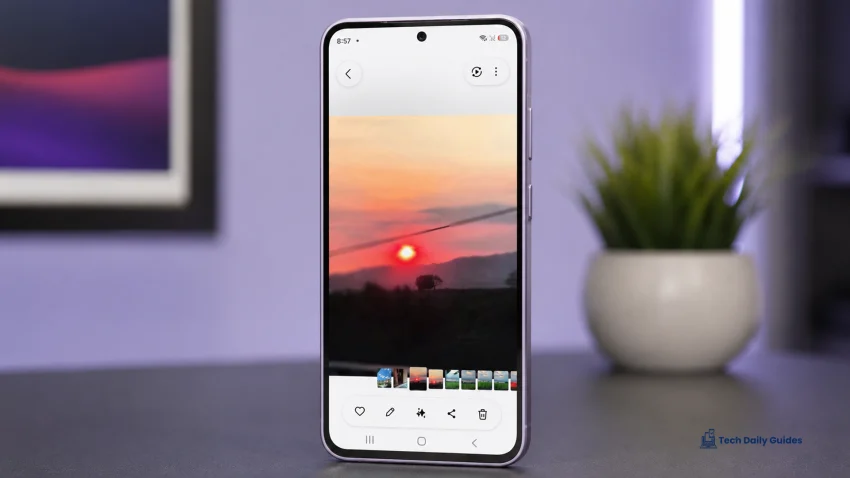
If photos look blurry or soft on your Galaxy A37 5G, the most likely causes are a dirty lens, poor lighting, subject movement, shaky hands, wrong focus, digital zoom, camera app glitches, or a case or screen protector blocking the camera area.
Start with the lens and lighting before changing deeper settings. Most soft photo problems come from simple things: fingerprints on the camera glass, low light, fast-moving subjects, or the phone choosing a slower shutter speed.
For more Galaxy A37 help, visit our main hub here: Samsung Galaxy A37 hub.
What “Blurry” or “Soft” Photos Usually Mean
Not every bad photo has the same cause.
Your Galaxy A37 5G photo may look:
- Blurry: The subject is not sharp, often because of missed focus or camera shake.
- Soft: The image looks smooth or lacking fine detail, even if it is technically focused.
- Hazy: The image looks cloudy, often because of fingerprints, moisture, or lens smudges.
- Grainy: The photo has noise, usually from low light.
- Washed out: The photo lacks contrast, often from strong light hitting the lens.
- Smeared: Fine details look painted or smudged, usually from low light processing or motion.
The fix depends on which one you are seeing. Use the steps below in order.
1. Clean the Camera Lens First
This is the easiest fix and the one people skip too often.
A tiny fingerprint on the rear camera lens can make photos look soft, foggy, or washed out. It can also make bright lights streak across the image.
- Turn the phone around.
- Check the rear camera glass under a light.
- Wipe the lens with a clean microfiber cloth.
- Remove dust around the camera rings.
- Take the same photo again.
Do not use tissue, rough cloth, metal tools, or cleaning liquid directly on the camera glass.
Also check the front camera if selfies look soft. Face oil, dust, or a screen protector can reduce sharpness quickly.
2. Remove the Case or Camera Lens Protector
Some blurry Galaxy A37 5G photos are caused by accessories, not the phone.
A thick case, misaligned camera cutout, cheap lens protector, or scratched camera cover can interfere with focus and clarity.
Test it this way:
- Remove the phone case.
- Remove any camera lens protector if it looks scratched, cloudy, or dusty.
- Clean the camera lens.
- Open the Camera app.
- Take a test photo in good lighting.
If the photo looks sharper without the case or lens protector, replace the accessory. A bad lens protector can make every photo look slightly foggy, especially at night or when lights are in the frame.
3. Tap to Focus Before Taking the Shot
The Galaxy A37 5G usually focuses automatically, but it can still choose the wrong subject.
This happens often when:
- The subject is close to the camera
- There is a busy background
- You are shooting through glass
- The subject is moving
- The lighting is low
- There are bright lights behind the subject
To focus manually:
- Open the Camera app.
- Point the camera at your subject.
- Tap the subject on the screen.
- Wait for focus to lock.
- Hold the phone steady.
- Tap the shutter button.
If the subject is too close, move the phone back a little. Phones need some distance to focus properly. If you are too near, the image may look soft no matter how many times you tap.
4. Add More Light Before Blaming the Camera
Low light is one of the biggest reasons photos look blurry or soft.
When the scene is dark, the camera may use a slower shutter speed or stronger image processing. That can make moving subjects look blurry and fine details look smeared.
Try these fixes:
- Move closer to a window.
- Turn on a room light.
- Avoid shooting under weak yellow lighting.
- Keep the subject still.
- Hold the phone with both hands.
- Use flash only when it helps.
- Avoid taking photos while walking.
For indoor photos, even a little more light can make a big difference. A photo taken near a window will usually look sharper than the same photo taken in a dim corner of the room.
5. Avoid Digital Zoom When You Need Sharp Detail
Digital zoom can make photos look soft because the phone is cropping into the image.
If you pinch to zoom too far, details may look blurry, artificial, or over-processed.
Use this approach instead:
- Take the photo at the normal 1x view.
- Move closer to the subject if possible.
- Keep the phone steady.
- Crop the photo later if needed.
Digital zoom is fine for quick snapshots, but it is not ideal for sharp photos of documents, pets, food, products, or text.
If you often photograph text or small objects, use good lighting and avoid zooming. Move the phone closer only until it still focuses clearly.
6. Hold the Phone Steady and Use the Timer
Soft photos often come from tiny hand movements when you press the shutter button.
This is more noticeable at night, indoors, or when taking close-up photos.
Try this:
- Open the Camera app.
- Tap the timer icon.
- Choose 2 seconds or 5 seconds.
- Hold the phone with both hands.
- Tuck your elbows close to your body.
- Tap the shutter.
- Stay still until the photo is taken.
For even sharper shots, place the phone on a stable surface or use a tripod.
This helps a lot for night photos, food shots, product photos, and document scans.
7. Turn Off Beauty Filters or Face Smoothing for Selfies
If selfies look soft but rear camera photos look fine, check the selfie camera settings.
Face smoothing, beauty filters, portrait effects, or third-party camera apps can make skin look overly smooth and reduce detail.
Try this:
- Open the Camera app.
- Switch to the front camera.
- Look for the face effects or filter icon.
- Turn off beauty effects, smoothing, or filters.
- Take a selfie in bright natural light.
Also clean the front camera area. If you use a screen protector, make sure it is not covering, fogging, or distorting the front camera.
8. Reset the Camera Settings
If photos started looking blurry after changing camera options, reset the Camera app settings.
This does not delete your photos.
- Open the Camera app.
- Tap the Settings gear.
- Scroll down.
- Tap Reset settings.
- Tap Reset.
- Close and reopen the Camera app.
- Take a test photo in good lighting.
This is useful if the issue started after changing resolution, filters, focus behavior, scene options, or video/photo settings.
9. Clear the Camera App Cache
A camera app glitch can cause slow focusing, soft previews, lag, or inconsistent photo quality.
Clear the Camera app cache like this:
- Open Settings.
- Tap Apps.
- Tap Camera.
- Tap Storage.
- Tap Clear cache.
- Restart your Galaxy A37 5G.
- Test the camera again.
Do not tap Clear data unless you are ready to reset the Camera app completely.
This fix is also useful if the camera became blurry or laggy after a software update. If the issue started right after a One UI update and you also noticed battery problems, read this related guide: How to Fix Fast Battery Drain After a One UI Update on Galaxy A37 5G.
10. Update the Phone and Check for Heat
Camera performance can be affected by software bugs, app bugs, or heat.
Update your Galaxy A37 5G:
- Open Settings.
- Tap Software update.
- Tap Download and install.
- Install any available update.
- Restart the phone.
Then update apps from the Play Store and Galaxy Store.
Also check whether the phone gets hot while taking photos. Heat can affect performance, slow the camera app, and make the phone reduce background activity to protect itself.
Your phone may get warmer when:
- Recording long videos
- Taking many photos quickly
- Using the camera outdoors
- Shooting under direct sunlight
- Using mobile data, GPS, and camera together
- Charging while using the camera
If your Galaxy A37 5G gets hot even during normal use, use this guide: Why the Phone Gets Hot During Normal Use on Galaxy A37 5G.
If the camera drain also affects battery life, check this full battery guide: Why Is the Battery Draining So Fast on Galaxy A37 5G?.
Best Fixes by Photo Problem
| What you see | Most likely cause | Best fix |
|---|---|---|
| Photo looks foggy or hazy | Dirty lens or bad lens protector | Clean lens, remove protector |
| Subject is blurry | Missed focus or movement | Tap to focus, hold steady |
| Night photo looks smeared | Low light processing | Add light, use timer |
| Selfies look too smooth | Beauty filter or face smoothing | Turn off filters |
| Text looks soft | Too close or digital zoom | Move back, use 1x |
| Photos became bad after settings changes | Camera setting issue | Reset Camera settings |
| Camera lags or focuses slowly | App cache issue | Clear Camera cache |
| Photos get worse after long use | Heat | Let phone cool, avoid direct sunlight |
When to Suspect a Hardware Problem
Most blurry photo issues are fixable. But hardware may be involved if:
- Every photo is blurry in good lighting
- The camera cannot focus at any distance
- Only one camera mode or lens area is consistently blurry
- The camera glass is cracked
- The phone was dropped recently
- Moisture entered the camera area
- The camera makes unusual clicking or buzzing sounds
- Resetting settings and clearing cache do not help
If this happens, visit a Samsung service center or contact Samsung Support.
Final Advice
Start with the simple checks: clean the lens, remove the case or lens protector, take a photo in bright light, and tap to focus. Those four steps fix a lot of blurry Galaxy A37 5G photo problems.
Then move to software fixes: reset Camera settings, clear the Camera cache, update the phone, and check whether heat is affecting performance.
If your camera issue started along with faster battery drain or overheating, use these related guides:
- Why Is the Battery Draining So Fast on Galaxy A37 5G?
- How to Fix Fast Battery Drain After a One UI Update on Galaxy A37 5G
- Why the Phone Gets Hot During Normal Use on Galaxy A37 5G
- Samsung Galaxy A37 hub
If photos remain blurry in bright light after every fix, the camera may need service.
FAQs
Why are my Galaxy A37 5G photos blurry even after tapping to focus?
Your subject may be too close, the lens may be dirty, the lighting may be too low, or the phone may be using digital zoom. Move back slightly, clean the lens, add more light, and take the photo at 1x.
Why do Galaxy A37 5G selfies look soft?
Selfies can look soft because of beauty filters, face smoothing, poor lighting, a dirty front camera area, or a screen protector interfering with the camera. Turn off face effects and clean the top part of the screen.
Should I reset my Galaxy A37 5G camera settings?
Yes, reset Camera settings if photos became blurry after changing camera options or after a software update. It does not delete your photos and is safer than resetting the whole phone.
Sources
- Samsung Support, “What to do if my Galaxy phone camera does not focus on the subject.”
https://www.samsung.com/ph/support/mobile-devices/what-to-do-if-my-galaxy-phone-camera-does-not-focus-on-the-subject/ - Samsung Support, “Camera modes and settings on Galaxy phones and tablets.”
https://www.samsung.com/us/support/answer/ANS10001353/ - Samsung Support, “How to fix ‘Camera failed’ error on Samsung Galaxy phone.”
https://www.samsung.com/ph/support/mobile-devices/how-to-fix-camera-failed-error-on-samsung-galaxy-phone/ - Samsung Support, “How to clear the app cache and data on your Galaxy phone.”
https://www.samsung.com/latin_en/support/mobile-devices/how-to-clear-the-app-cache-and-data-on-your-galaxy-phone/ - Tech Daily Guides, “Samsung Galaxy A37 Hub.”
https://techdailyguides.com/samsung-galaxy-a37/