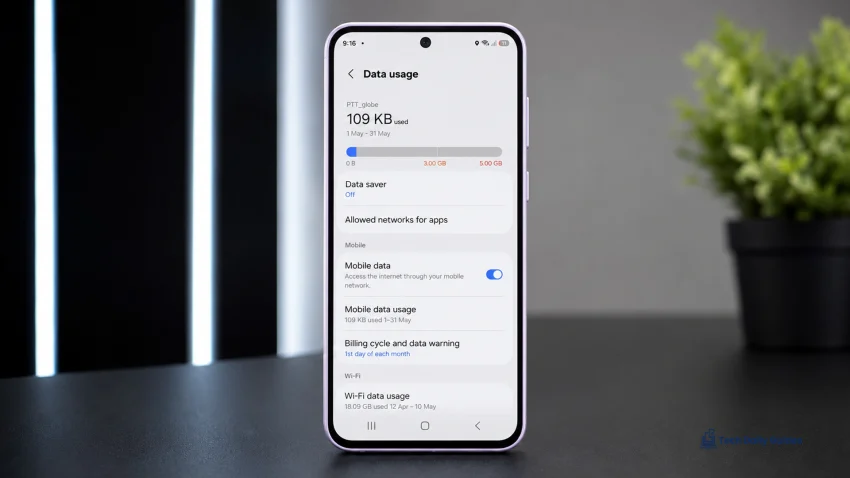
If mobile data is not working on your Galaxy A37 5G, start by toggling Airplane mode, checking your signal, confirming mobile data is turned on, restarting the phone, and checking whether your carrier has an outage. If that does not work, switch between 5G and LTE, check your APN settings, remove data limits, reseat the SIM, and reset mobile network settings.
This problem usually comes from one of five things:
- Weak or unstable signal
- Wrong network mode
- SIM or carrier issue
- Incorrect APN settings
- A temporary One UI or modem glitch
Do not factory reset the phone right away. Most mobile data problems can be fixed without deleting anything.
For more Galaxy A37 help, visit the main Samsung Galaxy A37 hub.
Symptoms: What “Mobile Data Not Working” Usually Looks Like
Your Galaxy A37 5G may show one or more of these signs:
- 5G, LTE, or 4G icon is missing
- Mobile data is on, but apps say there is no internet
- Calls and texts work, but internet does not
- Internet works on Wi-Fi but not mobile data
- Mobile data keeps disconnecting
- Data works in some locations but not others
- The phone shows signal bars but pages do not load
- Hotspot turns on, but connected devices have no internet
- Mobile data became unreliable after a One UI update
- The phone gets warm while trying to connect to weak signal
That last one matters. A weak mobile signal can also make the phone work harder, which may cause heat and battery drain. If you notice both issues, check these related guides later: Why Is the Battery Draining So Fast on Galaxy A37 5G? and Why the Phone Gets Hot During Normal Use.
1. Turn Mobile Data Off and On Again
Start with the simplest fix. Sometimes the phone just needs to reconnect to the carrier network.
- Swipe down from the top of the screen.
- Swipe down again to open the full Quick Settings panel.
- Tap Mobile data to turn it off.
- Wait 10 seconds.
- Tap Mobile data again to turn it back on.
- Open Chrome, YouTube, or another app to test the connection.
If the mobile data icon comes back and apps load normally, the issue was likely a temporary connection glitch.
If nothing changes, continue with Airplane mode.
2. Toggle Airplane Mode for a Fresh Network Connection
Airplane mode forces the Galaxy A37 5G to disconnect from the mobile network, then reconnect cleanly.
- Swipe down from the top of the screen.
- Tap Airplane mode.
- Wait 20 to 30 seconds.
- Tap Airplane mode again to turn it off.
- Wait for the signal bars and 5G, LTE, or 4G icon to return.
- Test mobile data again.
This helps when your phone is stuck on a weak tower, switching between network bands, or showing signal bars without real data access.
3. Restart Your Galaxy A37 5G
A restart clears temporary software issues that can affect mobile data, calls, apps, and background services.
- Press and hold the Side button and Volume Down button.
- Tap Restart.
- Wait for the phone to turn back on.
- Make sure Wi-Fi is off for testing.
- Turn on Mobile data.
- Open a browser and load a fresh page.
Restarting is especially useful if mobile data stopped working after:
- A One UI update
- A carrier settings change
- A SIM swap
- Long travel
- Using hotspot
- Switching between Wi-Fi and mobile data
- Heavy app use or lag
If the issue started after a One UI update and battery drain also became worse, use this related guide next: How to Fix Fast Battery Drain After a One UI Update.
4. Check Signal Strength and Carrier Outages
Mobile data depends on your carrier signal. If the signal is weak, overloaded, or down in your area, changing phone settings may not help.
Check these first:
- Are you indoors, underground, or inside a thick-walled building?
- Did mobile data stop working only in one location?
- Do other people using the same carrier have the same issue?
- Does mobile data work outside or near a window?
- Is your carrier showing an outage in your area?
- Is your prepaid plan out of data?
- Is your postpaid account active and paid?
Try this quick test:
- Turn off Wi-Fi.
- Move near a window or go outside.
- Wait 30 seconds.
- Check if 5G, LTE, or 4G appears.
- Try loading a basic website.
- Try sending a message through a data-based app.
If mobile data works outside but not indoors, the phone is probably fine. The issue is weak indoor coverage.
Weak signal can also drain battery faster because the phone keeps searching for a stable connection. That is covered in more detail in our Galaxy A37 5G battery drain guide.
5. Switch Between 5G and LTE
5G is fast when the signal is strong. But if 5G coverage is weak or unstable in your area, your Galaxy A37 5G may struggle to maintain a data connection.
Try LTE temporarily.
- Open Settings.
- Tap Connections.
- Tap Mobile networks.
- Tap Network mode.
- Choose an option with LTE/3G/2G or LTE if available.
- Wait for the phone to reconnect.
- Test mobile data again.
If LTE works but 5G does not, the issue is probably your local 5G coverage, carrier provisioning, or tower congestion.
Use 5G again when:
- You are in a strong 5G area
- You need faster downloads
- You are streaming or uploading large files
- LTE becomes slow or crowded
For everyday use, LTE can sometimes feel more stable and use less battery in weak 5G areas.
6. Check Data Limit, Data Saver, and App Data Access
Your mobile data may be working, but a setting could be blocking apps from using it.
Check Data Saver
- Open Settings.
- Tap Connections.
- Tap Data usage.
- Tap Data saver.
- Turn it off temporarily.
- Test the affected app again.
Check mobile data limit
- Open Settings.
- Tap Connections.
- Tap Data usage.
- Tap Billing cycle and data warning.
- Check whether a data limit is enabled.
- Turn off the limit or increase it if needed.
Check app mobile data permission
- Open Settings.
- Tap Apps.
- Select the app that cannot connect.
- Tap Mobile data.
- Make sure background data is allowed if you need it.
- Turn on unrestricted data usage only for important apps.
This fix is useful when some apps work on mobile data but others do not.
Examples:
- Chrome works, but Messenger does not
- YouTube works, but games cannot connect
- Banking app works on Wi-Fi only
- Maps does not update on mobile data
- Photos or cloud backup stops when Wi-Fi is off
If your phone also feels slow or apps freeze while switching networks, check our related guide: How to Fix Lag and Stuttering in One UI.
7. Check APN Settings
APN settings tell your Galaxy A37 5G how to connect to your carrier’s mobile data network. If the APN is wrong, missing, or corrupted, calls and texts may still work while mobile internet fails.
- Open Settings.
- Tap Connections.
- Tap Mobile networks.
- Tap Access Point Names.
- Select your carrier’s correct APN.
- Tap the three-dot menu.
- Tap Reset to default if available.
- Restart the phone.
- Test mobile data again.
Do not randomly copy APN settings from an unknown website. Use your carrier’s official APN settings if you need to enter them manually.
APN issues are more likely if:
- You recently changed SIM cards
- You switched carriers
- You use an MVNO or prepaid carrier
- You traveled internationally
- Mobile data stopped after a carrier update
- Hotspot works strangely
- MMS does not send
If you are not sure which APN is correct, contact your carrier and ask for the APN settings for Android or Samsung phones.
8. Remove and Reinsert the SIM Card
A loose, dirty, damaged, or inactive SIM can cause mobile data problems.
Before doing this, turn the phone off.
- Power off your Galaxy A37 5G.
- Remove the SIM tray using the ejector tool.
- Take out the SIM card.
- Check for scratches, dirt, or damage.
- Place the SIM back into the tray properly.
- Insert the tray fully.
- Turn the phone on.
- Wait for signal.
- Test mobile data again.
If your phone uses eSIM, check your eSIM profile instead:
- Open Settings.
- Tap Connections.
- Tap SIM manager.
- Make sure the correct SIM or eSIM is active.
- Confirm mobile data is assigned to the right SIM.
For dual-SIM users, this is important. Your Galaxy A37 5G may be using the wrong SIM for mobile data.
9. Reset Mobile Network Settings
If mobile data still does not work, reset the mobile network settings. This can fix broken carrier settings, modem glitches, and bad network configurations.
This will not delete your photos, videos, apps, or files. It may reset mobile network preferences, Wi-Fi, and Bluetooth settings depending on the One UI version.
- Open Settings.
- Tap General management.
- Tap Reset.
- Tap Reset mobile network settings if available.
- If you do not see that option, choose Reset network settings.
- Confirm the reset.
- Restart your phone.
- Reconnect to mobile data.
- Pair Bluetooth devices and reconnect Wi-Fi later if needed.
Use this when:
- Mobile data stopped after an update
- Network mode changes did not help
- APN reset did not work
- SIM is detected but data does not load
- The phone keeps switching between 5G and LTE
- Hotspot has no internet
This is one of the most effective fixes before contacting your carrier.
10. Update One UI and Carrier-Related Apps
Software updates can fix modem behavior, carrier compatibility, SIM detection, and network stability.
Check for system updates:
- Open Settings.
- Tap Software update.
- Tap Download and install.
- Install any available update.
- Restart your phone.
Then update apps:
- Open the Google Play Store.
- Tap your profile icon.
- Tap Manage apps and device.
- Tap Update all.
Also update Samsung apps:
- Open the Galaxy Store.
- Tap Menu.
- Tap Updates.
- Install available updates.
If mobile data stopped after a One UI update, the fix may come from a later patch, carrier services update, or app update. You can also read our related guide on battery drain after a One UI update if the update caused more than one issue.
11. Contact Your Carrier Before Factory Resetting
If none of the fixes above work, contact your carrier before resetting the phone.
Ask them to check:
- Your account status
- Your data balance or plan
- SIM activation
- 5G provisioning
- APN settings
- Local tower outages
- Data restrictions
- Roaming status
- Whether your SIM needs replacement
- Whether your IMEI is properly registered on the network
This matters because the phone may be working fine, but your account or SIM may not be provisioned correctly for data.
Try your SIM in another phone if possible. Also try another active SIM in your Galaxy A37 5G. That tells you whether the issue follows the SIM or stays with the phone.
If another SIM works in your Galaxy A37 5G, your original SIM or account is likely the issue.
If no SIM works, the problem may be phone settings, software, or hardware.
Best Fixes by Situation
| Problem | Most likely cause | Best fix |
|---|---|---|
| No 5G/LTE icon | Mobile data off, weak signal, SIM issue | Toggle mobile data, check SIM, move location |
| Signal bars but no internet | APN, carrier issue, stuck connection | Toggle Airplane mode, reset APN |
| Works on Wi-Fi only | Mobile data setting or carrier issue | Check data usage, APN, account status |
| LTE works but 5G does not | Weak 5G or carrier provisioning | Use LTE temporarily, contact carrier |
| One app has no data | App restriction or Data Saver | Check app mobile data settings |
| Data stopped after update | One UI or carrier settings glitch | Restart, update apps, reset network settings |
| Data drains battery fast | Weak signal or 5G switching | Use Wi-Fi or LTE in weak signal areas |
| Phone gets hot on data | Poor signal or background activity | Move location, close apps, check heat guide |
What to Check Before You Blame the Phone
Before assuming your Galaxy A37 5G is defective, check these:
- Your carrier plan still has data
- Your SIM is active
- Mobile data is assigned to the correct SIM
- There is no outage in your area
- Airplane mode is off
- Data Saver is not blocking apps
- APN is correct
- 5G coverage is strong where you are
- The issue happens in more than one location
- Another SIM also fails in the phone
A lot of “phone problems” are actually carrier, SIM, or coverage problems.
Final Advice
Do not start with a factory reset. For the Galaxy A37 5G, mobile data problems are usually fixed by reconnecting to the network, switching between 5G and LTE, checking data limits, correcting APN settings, reseating the SIM, or resetting network settings.
Use this order:
- Toggle mobile data.
- Turn Airplane mode on and off.
- Restart the phone.
- Check signal and carrier outage.
- Switch from 5G to LTE.
- Check Data Saver and data limits.
- Reset APN settings.
- Reseat the SIM or check SIM manager.
- Reset mobile network settings.
- Contact your carrier.
If mobile data also causes fast battery drain or heat, read these next:
For more fixes, go to the Samsung Galaxy A37 hub.
FAQs
Why does my Galaxy A37 5G show signal bars but mobile data does not work?
This usually means the phone is connected to the carrier for calls or texts, but the data connection is failing. Check Mobile data, toggle Airplane mode, reset APN settings, switch to LTE, and confirm your carrier account has active data.
Should I use 5G or LTE if mobile data keeps disconnecting?
Use LTE temporarily if 5G is weak or unstable in your area. LTE can be more reliable and may use less battery when 5G coverage is poor. Switch back to 5G when you are in a stronger coverage area.
Will resetting network settings delete my files?
No. Resetting mobile network or network settings does not delete your photos, videos, apps, or personal files. It may remove saved Wi-Fi networks, Bluetooth pairings, and custom network preferences, so you may need to reconnect them afterward.
Sources
- Samsung Support, “Mobile data issues on Samsung phone or tablet.”
https://www.samsung.com/us/support/troubleshoot/TSG01001598/ - Samsung Support, “Reset network settings on your Galaxy phone.”
https://www.samsung.com/us/support/answer/ANS10001303/ - Samsung Support, “How to use and manage SIM card on your Galaxy phone.”
https://www.samsung.com/uk/support/mobile-devices/how-to-use-or-manage-dual-sim-cards/ - Tech Daily Guides, “Samsung Galaxy A37 Hub.”
https://techdailyguides.com/samsung-galaxy-a37/