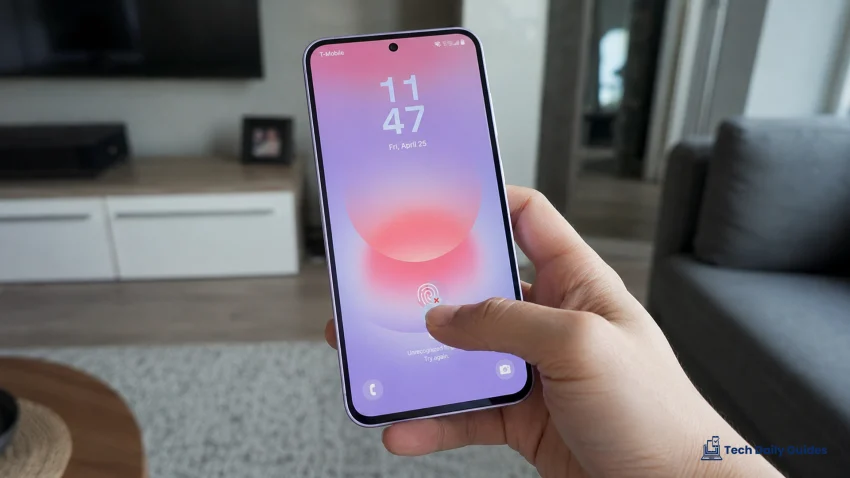
If the fingerprint sensor on your Samsung Galaxy A37 is not working, you’re not alone. This can happen because of dirty fingers, a smudged screen, weak fingerprint registration, screen protector issues, One UI glitches, or security settings that need to be refreshed. The good news is, a few quick adjustments can usually get fingerprint unlock working again.
For more device-specific fixes, you can also visit the Samsung Galaxy A37 hub where related guides are grouped in one place.
Clean the Screen and Your Finger
I’d start with the simplest fix because the fingerprint sensor needs a clean surface to read your fingerprint properly. If your screen has oil, dust, moisture, or tiny smudges, the phone may fail to recognize your finger even if the sensor itself is working.
Wipe the screen with a soft microfiber cloth, then dry your finger completely before trying again. If you recently applied lotion, washed your hands, or used the phone in humid conditions, wait a few minutes and test the sensor again.
This matters more if the issue comes and goes. A fingerprint sensor that works sometimes but fails often is usually struggling with surface contact, not a broken part.
Check Your Screen Protector
A thick or low-quality screen protector can interfere with fingerprint recognition. Even if touch input works fine, the fingerprint scanner may still have trouble reading through the extra layer.
If the problem started after installing a new screen protector, that protector is the first thing I’d suspect. Try pressing a little more firmly when unlocking the phone. If recognition is still poor, remove the protector and test the fingerprint sensor without it.
When replacing it, use a screen protector marked as fingerprint-compatible. This is especially important if you also notice touch delay or One UI feels less responsive, which can sometimes overlap with general lag and stuttering issues.
Delete and Re-Add Your Fingerprints
Your saved fingerprint data may no longer match how your finger naturally touches the screen. This can happen after a screen protector change, dry skin, small cuts, repeated failed scans, or a major software update.
Go to Settings > Security and privacy > Biometrics > Fingerprints. Enter your PIN or password, then delete your saved fingerprints. After that, register your fingerprint again slowly and follow the on-screen instructions.
Try adding the same finger twice from slightly different angles. This gives the phone more data to work with and can make unlocking more reliable, especially if you usually touch the sensor from the side.
Restart the Galaxy A37
A restart can clear temporary glitches affecting biometrics, lock screen behavior, and background system services. This is worth doing if the fingerprint sensor suddenly stopped working even though it was fine earlier.
Press and hold the Side button and Volume Down button, then tap Restart. Wait for the phone to fully reboot before testing fingerprint unlock again.
If the sensor works after restarting but fails again later, the problem may be connected to a background app, a One UI bug, or another system issue. It may also show up together with symptoms like fast battery drain or unusual background activity.
Check Fingerprint Unlock Settings
Sometimes the fingerprint sensor works, but fingerprint unlock is not active where you expect it to be. The phone may still require your PIN after a restart, after too many failed attempts, or when certain security conditions are triggered.
Open Settings > Security and privacy > Biometrics > Fingerprints and make sure fingerprint unlock is enabled. You can also check lock screen settings to confirm that biometrics are allowed for unlocking.
Remember that Samsung phones may still ask for your PIN, password, or pattern from time to time. That does not always mean the fingerprint sensor is broken. It may simply be a normal security check.
Update Your Phone Software
If the fingerprint problem started after a One UI update or appeared on a new device, check for another software update. Samsung updates can include fixes for biometric performance, lock screen bugs, app behavior, and system stability.
Go to Settings > Software update > Download and install. If an update is available, install it and restart your phone afterward.
This is also worth doing if the fingerprint issue appeared together with other post-update problems. If battery life also changed after updating, this One UI battery drain fix may help you troubleshoot related system behavior.
Test Without Power-Saving Restrictions
Power-saving features are useful, but aggressive battery settings can sometimes affect how quickly the phone wakes, scans, or responds from the lock screen. This is more noticeable when the fingerprint sensor is slow rather than completely dead.
Go to Settings > Battery and temporarily turn off Power saving. Then lock the phone and test fingerprint unlock several times.
If fingerprint recognition improves, keep Power saving off for a while and watch how the phone behaves. You can still manage battery life by reducing background apps instead of limiting the system too heavily. If the phone also gets warm during normal use, check your guide on why the Galaxy A37 gets hot to rule out background activity.
Reset All Settings
If nothing has worked, reset all settings before considering a factory reset. This refreshes system settings, security behavior, network settings, and app preferences without deleting your photos, videos, or personal files.
Go to Settings > General management > Reset > Reset all settings. Confirm the reset, then restart your Galaxy A37.
After the reset, register your fingerprint again and test it before changing too many settings. If fingerprint unlock now works properly, one of your previous settings may have been interfering with biometric recognition.
If the fingerprint sensor still does not work after these steps, test other screen-related features and check whether the issue started after a drop, repair, screen protector change, or software update. If the sensor fails completely even after resetting settings and re-adding fingerprints, it may need service. At that point, contact Samsung Support or visit a service center.